
Small-business guide
Digital signage software for small business
A practical guide to choosing your first screen, keeping content current, and deciding what you need to pay for.
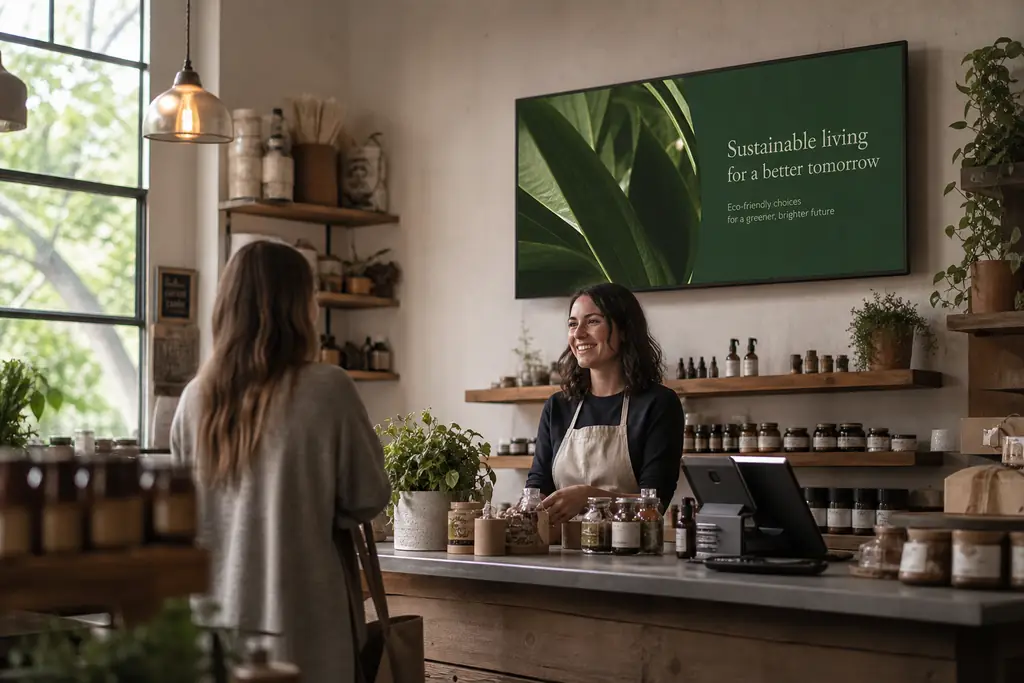
Digital signage software lets you change what appears on a TV without visiting the screen with a USB stick. For a café, salon, shop or reception desk, the useful starting point is simple: one display, a short playlist and a person responsible for keeping it accurate.
What should small-business signage software do?
Look for a service that handles the work you repeat each week, rather than the longest feature list. BryteCast combines a browser-based player with a web dashboard for managing screens, content, playlists and schedules.
- Remote updates: upload new images or videos and update the playlist assigned to your screen.
- Playlists: put content in order and set how long each item stays visible.
- Scheduling: organise content around opening hours, offers or different parts of the day.
- Screen pairing: connect a display to your workspace using its pairing code.
- Organised content: keep reusable media in folders rather than uploading it again for each screen.
Can you use the TV you already own?
First, check whether your TV has a modern web browser that can open the BryteCast player. A display without a suitable browser needs a compatible connected device; not every TV can run browser signage on its own. Check the player on your actual hardware before committing to a rollout.
Reliable internet, readable text and a sensible viewing position matter more than a large screen. Test the display from where customers stand, including reflections and daylight. A portrait window display and a landscape menu board need different artwork, so set the screen orientation before designing your content.
How to set up your first BryteCast screen
- Create your account and workspace, then add a screen.
- Open the BryteCast player on a browser-capable display and complete pairing with the six-character code.
- Upload an image or video to your content library. Start with one clear offer or service menu.
- Create a playlist, add your content, arrange its order and set each item’s duration.
- Assign the playlist to the screen and check playback on the physical display.
- Add a schedule when you need different content at different times, and check the next change on the display.
Keep the first playlist short. A customer should understand an offer without waiting through a long loop. Preview the playlist before assigning it, then check prices, spelling, image quality and any QR code from a real viewing distance.
What should you put on screen?
Cafés and food businesses
Start with a legible menu, today’s special and a single extra item customers can add to an order. Separate breakfast and lunch content when your menu changes. Our café and restaurant signage page covers the use case in more detail.
Salons and service businesses
Show a concise service menu, seasonal treatments or booking information. Use your own photography and keep prices consistent with what staff quote. See signage for salons and spas for relevant examples.
Independent shops
Rotate a few product highlights, a current promotion and useful information such as collection instructions. Remove expired offers promptly; attractive content is not useful if it sends customers to a deal you no longer honour.
How much does BryteCast cost?
The Starter plan costs £25 or $29 per month and includes 3 screens, with a maximum of 5. Starter offers a 7-day trial. Extra screens cost more; review the current pricing and plan comparison before choosing your screen count.
Compare the total cost, not just the software fee. Include any display or connected device you need, installation, electricity and the time spent creating content. Do not budget around future features: BryteCast marks capabilities still in development as “Coming Soon” on the pricing page.
A checklist before you choose
- Does the player work on the exact display and browser you plan to use?
- Can a member of your team upload content and change the playlist without help?
- Are prices, screen limits and optional features clear?
- Have you tested a scheduled change at the time it should happen?
- Who checks the screen each day and removes outdated content?
Start with one screen and one measurable purpose, such as making your menu easier to read or reducing time spent changing printed offers. Track the time you spend updating it and ask staff whether customers find the information useful before adding more screens.
Explore BryteCast for small businesses, compare plans, or book a demo to discuss your display setup.