
Cloud or On-Premise Digital Signage: Which Suits a Small Team?
Guides 11 min read
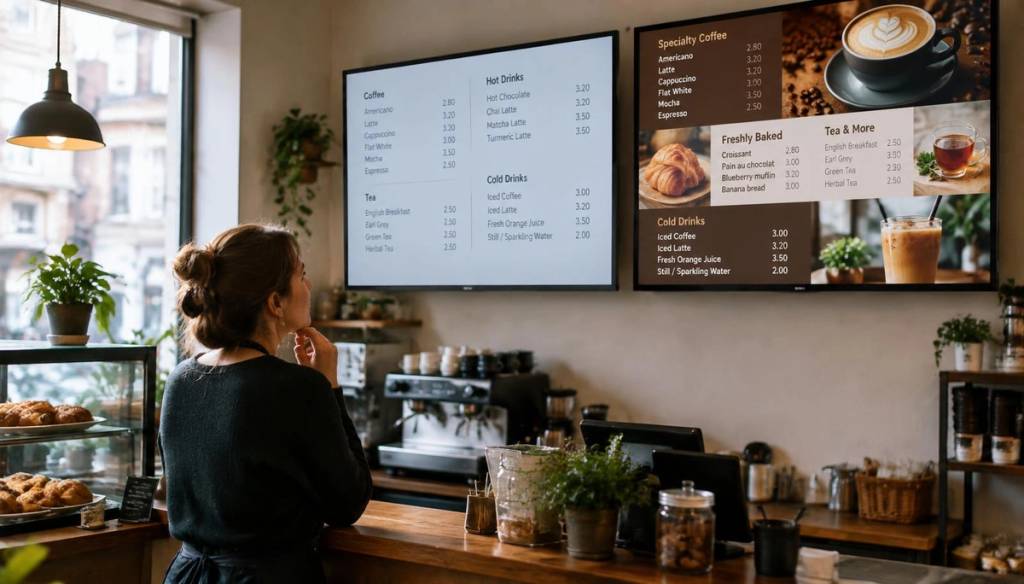
Choosing between cloud based digital signage and a locally managed system comes down to how your team needs to update screens, what equipment you already have and what should happen if the internet goes down. For a small business with limited time or several locations, the right setup should be simple to run as well as affordable to keep.
Key Takeaways
- Cloud-managed signage lets staff publish and schedule content through an online dashboard, including when they are away from the premises.
- Locally managed signage can suit a single screen or a site that needs to keep control within its own network, but updates may mean visiting the screen or computer.
- Either approach can keep content playing during an internet outage if the player stores content locally. Check what is cached and how updates behave offline.
- Check compatibility before choosing software. Confirm the screen, player, operating system, browser and media formats work together.
- Compare the full cost, including software, players, installation, support, staff time and future replacement or migration.
- For multiple locations, plan permissions and approvals so local teams can make appropriate changes without leaving outdated content on screen.
How cloud-based and locally managed signage work
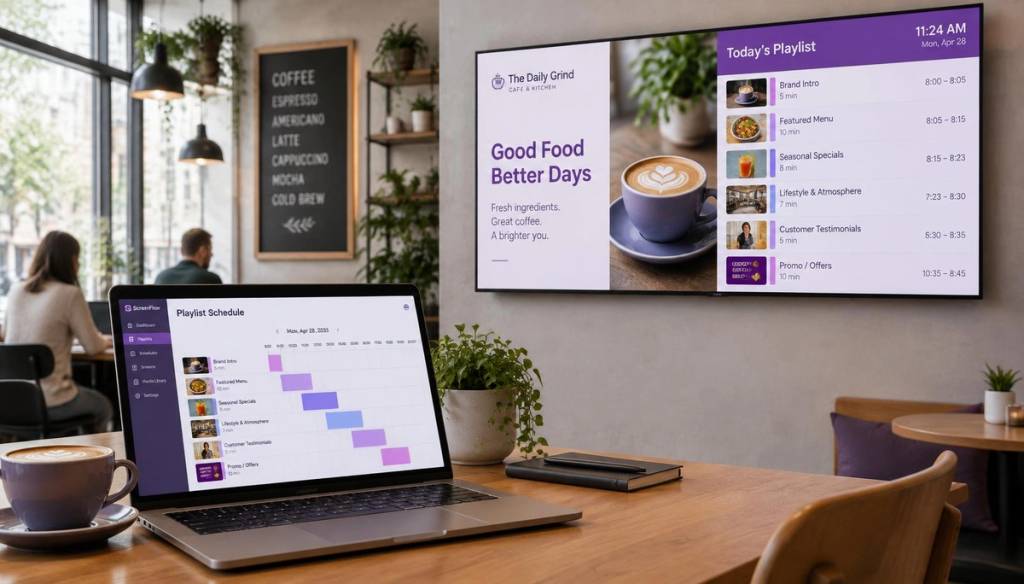
Cloud-based digital signage uses an online content management system, or cloud CMS, to organise what appears on each screen. A manager creates a playlist, sets a schedule and publishes it through the internet; a screen-connected player receives the content and displays it.
The player may be built into a compatible smart TV, run as an app or browser, or be a separate device connected to the screen. The exact arrangement depends on the software and hardware you choose, so check compatibility before buying equipment.
With locally managed, on-premise digital signage, content is controlled from equipment at the premises, such as a PC, local server or USB drive. A member of staff may update the files on that equipment or visit the screen to replace them.
These approaches describe where content is managed; playback may happen on a local player or use an internet connection. A cloud system can store content on a local player for playback, while a locally managed system may still use an internet connection for some tasks.
Which setup makes everyday updates easier?
Cloud management is useful when offers, menus, class timetables or announcements change regularly. Staff can update a playlist through a browser or supported app, then publish it to one screen, a group of screens or several sites without travelling to each display.
Content scheduling can show different material at set times, such as a café’s breakfast menu in the morning and lunch options later. Look for scheduling that is straightforward to edit, with clear start and end dates so a short-term promotion does not linger after it finishes.
A local PC or USB approach may be easier when content changes rarely and one person can visit the screen to make updates. It can also be a sensible fit for a basic display that only needs a repeating set of static slides.
For a small team, consider who will actually maintain the screen. If updates are often delayed because the person responsible is busy or away, remote screen management can make routine changes easier to keep on top of.
What hardware and network access will you need?
Before choosing digital signage software, list the screens you plan to use and identify how each will play content. Check the TV’s supported apps or browser, operating system, screen resolution and orientation, as well as the player’s supported image and video formats.
An existing TV may work if it can run the required player app or browser. If it cannot, you may need a compatible external media player, connected to the screen by HDMI; include its cost and replacement needs in your comparison.
Cloud-managed screens need a reliable network connection for publishing updates and receiving remote commands. Wi-Fi can be convenient, but a weak signal in a reception area, shop floor or gym may delay syncing, so test the connection where the screen will sit.
Ask your IT support or network provider whether firewall rules will allow the player to reach the cloud service. Also consider bandwidth: a playlist of frequently updated images may use less data to sync than large video files.
BryteCast is a UK cloud digital signage platform that describes managing screens through a web dashboard, including screens using existing displays. Its small business signage overview gives examples of how this approach can fit a shop, studio or reception area.
What happens when the internet connection drops?
Cloud-based signage does not always stream every frame from the internet. Many systems download content to the media player so it can continue with the latest synced playlist during a temporary outage; this is called content caching or offline playback.
While the connection is down, the screen cannot receive new content or remote commands. When the connection returns, the player can sync changes, but the timing and recovery behaviour vary by system.
Ask exactly what is cached: images, videos, schedules, fonts and any other elements the playlist needs. Test the screen by disconnecting its network after content has synced, then check what continues to play and what happens when the connection comes back.
For a USB-based setup, content already stored on the drive can play without internet access. That does not make it automatically more reliable: someone still needs to replace the files, and an outdated USB playlist will keep showing outdated content.
How much does each option cost to run?
With cloud-managed signage, include the recurring software fee and check how pricing changes with the number of screens, locations, users or features. A low starting price may not reflect what you will pay once you add the screens or access controls your team needs.
With a local setup, account for the PC or player, installation, software, maintenance and the staff time required to prepare and distribute content. A USB approach can be inexpensive for a simple single-screen display, but frequent manual updates add work that is easy to overlook.
For either option, consider the total cost over the period you expect to use it:
- Equipment: screens, players, mounts, cabling and replacement devices.
- Setup: installation, network configuration and time spent getting the first playlist live.
- Ongoing support: software fees, troubleshooting and help for staff.
- Staff time: creating content, checking screens and updating promotions or menus.
- Moving on: the effort to export content, replace equipment or switch providers later.
Also check what happens if you need to pause, reduce or expand your screen count. A clear view of the total ownership costs is more useful than comparing subscription prices alone.
How do security and team permissions compare?
Cloud hosting is not, by itself, proof that a platform meets your security or privacy needs. Ask where account and playback data is stored, who can access it, how long it is retained and what happens to it if you stop using the service.
For any cloud CMS, check for individual user accounts, role-based access control and a way to remove access when a staff member leaves. Give each person only the permissions they need, and use approval steps if content must be checked before it appears on screens.
Local systems also need sensible safeguards. Secure the PC or server, limit access to content folders and keep software updated; a device that is physically accessible to many people can be changed or disconnected without warning.
For multiple locations, agree which content headquarters controls and where local teams can make changes. A good process can allow local updates while protecting core pricing, branding or safety messages.
How should a small team manage screens across locations?
A cloud dashboard can make multi-location deployment simpler by grouping screens and publishing central content remotely. It can also help staff schedule local variations, such as different opening hours or site-specific promotions, without creating a separate manual process for every display.
Before rollout, decide who owns each part of the content workflow:
- Central team: maintains approved brand materials and shared campaigns.
- Local manager: requests or schedules site-specific content within agreed limits.
- Approver: checks time-sensitive, regulated or customer-facing messages before publication.
- Screen owner: checks that the right content is showing and reports faults.
Set expiry dates for offers and seasonal messages, and decide how urgent local overrides work. Screen monitoring can help staff spot a screen that is offline, but it does not replace checking that the correct playlist is on the correct display.
During a trial or demonstration, run a real workflow: publish a change, schedule it for a later time, make a local override and confirm what appears on each screen. If you need proof of play, ask how the system records playback and who can access those records.
Cloud or on-premise: which suits your small team?
| Consideration | Cloud-managed | Locally managed |
|---|---|---|
| Updates | Publish remotely through a dashboard. | Often requires access to the local PC, server or USB drive. |
| Equipment | Needs a compatible screen and playback method; a separate player may still be required. | May rely on a local computer, server or USB media. |
| Internet outage | Cached content may keep playing, but new changes and commands wait for reconnection. | Stored content can play locally, though remote management may not be available. |
| Upkeep | The provider manages the hosted service; your team still manages screens, accounts and content. | Your team or IT support may need to maintain local devices and update files. |
| Growth | Often suits adding screens or locations from one dashboard. | Can require more local equipment and a repeatable update process at each site. |
A short decision checklist
Use these questions to narrow down the right setup for your shop, café, clinic, gym or office:
- How often will the content change, and who will make those updates?
- Do you need to manage screens from outside the premises or across more than one location?
- Do your screens support the required player, browser or operating system?
- What should keep playing if the internet fails, and how will you test offline playback?
- Can your network support syncing the content, and will firewall rules allow it?
- Do you need user permissions, approval steps or local overrides?
- Have you compared equipment, installation, support, staff time and exit costs as well as software fees?
Choose cloud management when remote updates, central control or growth across sites will save your team time. Choose a local setup when content is simple, changes are rare and keeping management on-site matters more than remote access.
Frequently Asked Questions
Can I use Canva for digital signage?
Yes. You can create graphics in Canva and upload exported files to digital signage software that supports those formats. Canva is a content creation tool, while a signage system handles playlists, screen assignment and playback.
Do we need a dedicated PC for every screen?
Not always; some screens run signage software themselves, while others need an external player.
How can we test a signage system before rolling it out?
Run a pilot on one screen in the location where it will be used. Test a routine update, a scheduled change, an internet interruption and a local override, then ask the staff who will manage the screen to complete the steps themselves.
What should we prepare if we might change providers later?
Keep original copies of images, videos and brand assets in a shared folder, along with a record of screen names, locations and playlist purpose. Ask how you can export content and user or playback records, and plan time to rebuild schedules in a new system.
Can one screen show different content at different times of day?
Yes; assign each time period its own scheduled playlist, and make sure the player has the needed content available.
What is cloud-based digital signage?
Cloud-based digital signage lets you manage screen content through an online system instead of updating each display by hand.
What is the best digital signage platform?
There is no single best digital signage platform for every team. Choose one that works with your screens and players, supports the updates and scheduling you need, and provides suitable offline playback, permissions and support within your budget.
How much does a digital signage platform cost per month?
The monthly cost depends on the subscription plan and the number of screens and features included. Compare the recurring fee with any equipment, setup and support costs before choosing a platform. You can see BryteCast's pricing plans for a UK example.
Conclusion
Cloud based digital signage suits small teams that need to update screens remotely, schedule content or manage several locations without visiting each display. A locally managed system can be a better fit for simple, stable content or where on-site control is a priority.
Start with the screens and network you already have, then test compatibility, cached playback, permissions and the full running cost. The best choice is the one your team can maintain reliably, including when plans change or the internet connection does not.
Get started
Ready to upgrade your screens?
Start your 7-day free trial. No credit card required — pair your first screen in minutes.