
Digital Signage User Permissions: Who Needs Admin Access?
Guides 8 min read

Good digital signage user permissions let each person do their job without giving them control over every screen, user or setting. For UK businesses using cloud digital signage, a clear division of responsibilities makes day-to-day updates easier to manage and helps prevent avoidable publishing mistakes.
Key takeaways
- Give administrator access only to people responsible for users, security and system-wide settings.
- Separate content creation, approval and publishing when a second check is needed.
- Set both a user’s role and the screens, locations or folders that role can access.
- Use branch-level access for local teams and broader access only where multi-site responsibilities require it.
- Use individual accounts and review access when people leave or change roles.
- Test both allowed and blocked actions before applying a permission setup across the team.
Match each role to the work it needs to do
Start by listing the tasks your team handles, then assign the smallest set of permissions that covers them. An administrator should manage users, security and system-wide settings; routine content updates rarely require that level of control.
Editors can create or update content, such as announcements and playlists. If content must be checked before it goes live, keep publishing separate from editing so an editor cannot bypass the review step.
Approvers need to review and approve content, while viewers need read-only access to information such as screen schedules or what is currently showing. Add an operator role only when someone needs to manage screen or device operations, and keep that responsibility distinct from publishing content or administering users.
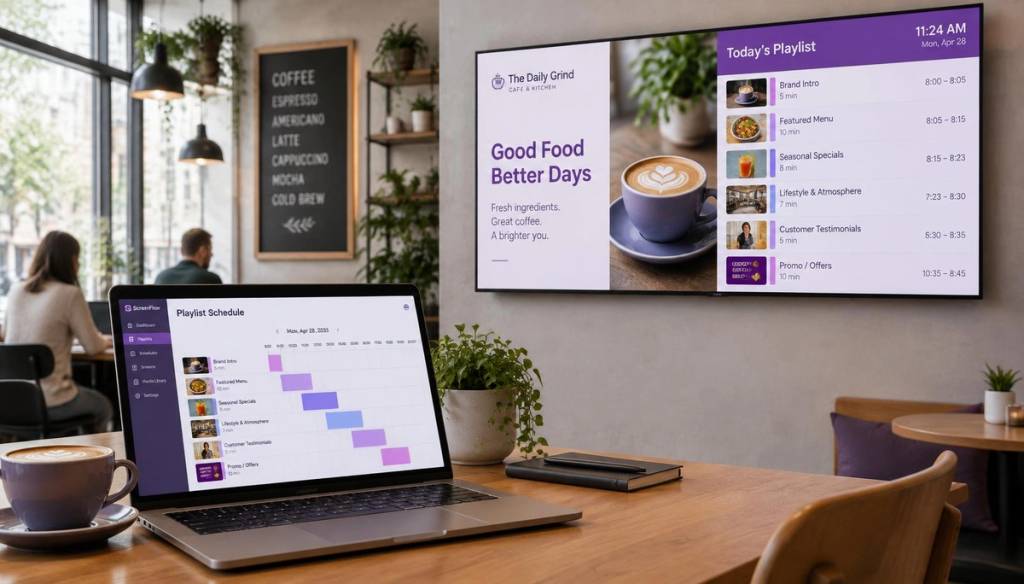
BryteCast is cloud-based digital signage software for managing screens, playlists, scheduling and team access from one dashboard. It is a relevant example of remote screen management and scheduled playlists; decide which people need access to those tasks before assigning their roles.
Role names and permissions can differ between platforms, so check what each role can actually do rather than relying on its label. A simple permission matrix can help: list tasks such as editing content, approving it, publishing, managing devices and adding users, then mark which roles need each action.
Set both the allowed actions and the access scope
A role defines the actions a person can take; an access scope defines which screens, locations or content they can take those actions on. For example, an editor limited to one branch can update that branch’s playlist, while an editor with organisation-wide scope could affect every location.
Use the narrowest useful scope, such as a screen group, one location or a content folder, rather than opening the whole account. Content folder permissions can help separate shared brand assets from material intended for a single team or branch.
Check how access travels through a location hierarchy. If a user belongs to a regional group that includes several branches, they may inherit access to those branches even if you also assign them to just one local group.
When a person can perform an unexpected action, look for the role or inherited scope that grants it. Remove or narrow that permission at its source instead of adding another broad restriction that may create confusion elsewhere.
BryteCast’s corporate-office setup describes workspace permissions and content scheduling by location. Those capabilities relate directly to the distinction between a person’s role and the screens within their scope.
Separate creating, approving and publishing content
A practical content approval workflow has three clear stages: the creator prepares a draft, an approver checks it, and an authorised publisher releases it to screens. The review should cover accuracy, dates, intended audience and brand suitability, since an otherwise polished message can still be wrong for a location or out of date.
Where independent review matters, do not let creators approve their own work. Separating those actions gives someone else the chance to catch a wrong price, expired offer, incorrect date or message intended for a different audience.
Before rolling out a role, test it with a sample account. Confirm that the user can edit an assigned playlist, then check that they cannot publish if that is restricted or change screens belonging to another branch.
Plan emergency publishing as a named, limited exception. Give responsibility to a designated person or small group, define when the exception can be used, and review its use afterwards instead of giving every routine user administrator access.
Keep branch access local while retaining central oversight
Group screens by branch or location, then give local editors access to their own group. A multi-site manager may need broader access to coordinate updates, but their scope should reflect their actual responsibilities rather than being a default for every branch manager.
Keep centrally controlled content separate from local content using folders or distinct workflows. This makes it less likely that a branch update will replace an organisation-wide notice, while still allowing local teams to manage relevant messages.
Before granting access to a parent location or group, check which child locations and screens inherit it. If a member of staff only needs one branch, assign that branch directly rather than giving access to a wider regional group.
If you run several sites, look for a plan that includes multi-location management and user roles and permissions. You can compare what is included on the BryteCast pricing page.
Manage account changes and review access regularly
Give each staff member an individual account rather than sharing a team login. Individual accounts make it possible to attribute actions to a person and remove one person’s access without interrupting everyone else.
When someone leaves, promptly disable their account, remove their group memberships and check for separately assigned access to screens or folders. When someone changes jobs, replace permissions they no longer need instead of layering new access on top of old access.
Use multi-factor authentication where available, and consider single sign-on if it fits your organisation’s identity setup. When investigating an unexpected change, review the available activity records or audit log to understand which account made it and when.
At a regular access review, check role membership, location scope, dormant accounts and temporary exceptions. Give each exception an owner and a next review date so temporary access does not quietly become permanent.
For information about BryteCast’s approach to account and content data, see its GDPR compliance information. Treat your own review process as part of everyday account management, not just a response to a problem.
Use this checklist before granting access
- Write down the tasks. Separate content creation, approval, publishing, screen or device administration, and user administration.
- Choose the least-privileged role. Select a role that covers those tasks, then assign only the required location, screen-group and content-folder scope.
- Test from the user’s perspective. Check that expected actions work and sensitive or out-of-scope actions are blocked.
- Set limits for exceptions. Add an end date for temporary access and name who approves exceptions.
- Schedule a review. Revisit permissions after role changes or departures, as well as during regular account checks.
- Record the process. Keep the checklist with your team’s operating procedure, including where remote screen management and playlist scheduling are part of daily work.
Frequently asked questions
Can one person have more than one digital signage role?
Yes, if the platform supports it and the combination reflects separate responsibilities, such as editing content and operating screens. Document why the person needs both roles so the combined access remains understandable during reviews.
Should temporary staff or contractors have their own accounts?
Yes. A named account makes it easier to identify actions and end access when an assignment finishes; include an expiry date in the access record or provisioning process.
What should a branch manager do when they need cover at another location?
Request access for the specific branch and period they are covering, with approval from the person responsible for that location. This gives the cover manager a clear authorisation trail without changing their usual branch responsibilities.
Can a read-only viewer see content that has not yet been published?
Read-only access controls whether someone can make changes, but draft visibility may be controlled separately. Decide whether unpublished material should be visible to viewers and check the relevant folder or draft access settings.
Conclusion
Effective digital signage user permissions match each person’s tasks to a defined role and a limited access scope. Reserve administration for system responsibilities, separate content creation from approval and publishing where needed, and review accounts as people and locations change. A straightforward checklist helps your team keep those decisions consistent as screen management grows.

Get started
Ready to upgrade your screens?
Start your 7-day free trial. No credit card required — pair your first screen in minutes.