
Offline Signage Playback: Which Content Needs to Be Ready?
Guides 10 min read
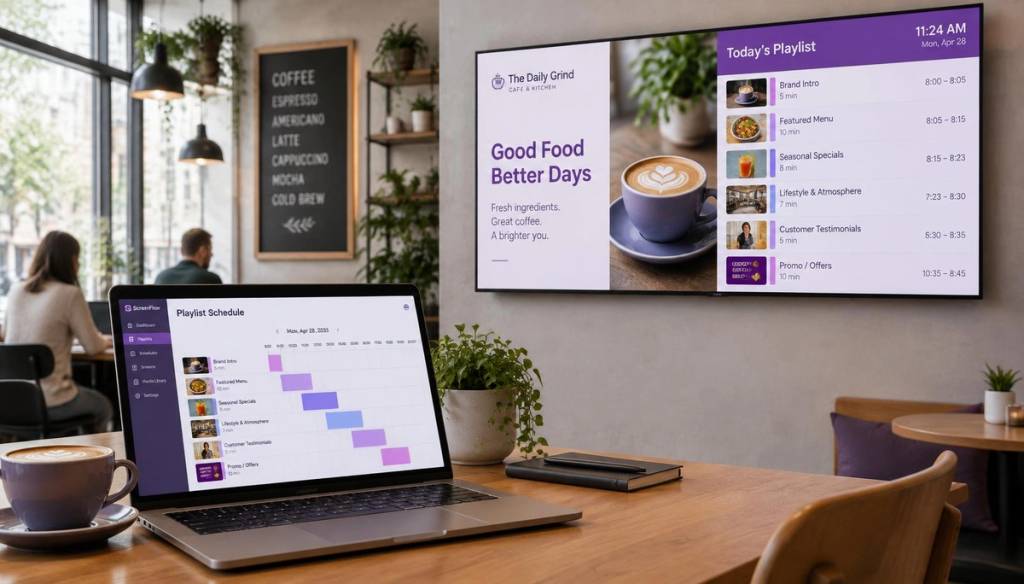
Offline signage can keep showing useful information during an internet outage, provided the player has already downloaded the content and schedule it needs. The key is to decide what must remain available, then test playback and reconnection before your screens go live.
Key Takeaways
- Cached playback can continue: A player can replay media and schedules saved to its local storage without reaching the internet.
- Playback and updates are separate: Cloud changes and remote commands normally wait until the player reconnects.
- Cache essential messages: Keep current opening hours, core menus, visitor information and safety notices available locally.
- Plan a fallback for live content: Streaming video, feeds and live web pages depend on an active connection unless you provide a downloaded alternative.
- Diagnose the right fault: Wi-Fi, internet access, player operation, power and display input are separate parts of the setup.
- Test the whole cycle: Check cached playback, a pending playlist change and synchronisation after reconnecting.
What offline playback means for a signage screen
A digital signage player can download media files and a playback schedule to its local content cache. If internet access drops, the player can replay those stored files without downloading them again.
That is different from managing the screen. A screen may continue playing its cached playlist while new content, schedule edits and remote commands wait for the player to regain access to the management service.
Wi-Fi connectivity is separate from internet access. A player can connect to the site’s local Wi-Fi while the router has lost its internet connection, or while a firewall prevents access to the cloud service.
An internet outage alone should not make a screen blank if the player is powered, working and connected to the correct display input. If playback stops, check those parts of the chain as well as the network.
For cafés, shops, clinics, gyms and reception areas, plan the screen around the information visitors need even when staff cannot publish an update. BryteCast’s small-business examples include screens used in shops, studios and reception areas, which can help you picture the kinds of messages to prepare.
Decide which messages must be cached
Start by asking what a customer, visitor or member would still need to know if your screen could not receive a fresh update. Cache information that remains useful through an outage, and make sure the stored version will not mislead people if it stays on screen longer than expected.
| Message type | What to keep ready | What to check |
|---|---|---|
| Opening hours and visitor basics | Opening times, entrance directions, reception details and other essential visitor information. | Keep the displayed details current and easy to read from the usual viewing distance. |
| Menus and services | Core menus, service lists and evergreen promotions in a locally stored format. | Choose versions that will not become misleading if a price, item or service changes before the next update. |
| Safety and operational instructions | Safety notices, evacuation information and routine instructions that people may need to see during an outage. | Keep the wording clear and the instructions appropriate for the location. |
| Local updates | Useful information such as meeting-room details, class guidance, appointment instructions and routine announcements. | Include only messages that remain accurate for the time the screen may be disconnected. |
| Time-sensitive content | Limited-time offers, live announcements and event updates. | Give these lower priority unless the content is downloaded before disconnection, and plan what should show instead. |
Stable images and video work well for evergreen information because the player can replay the saved files. Promotions tied to a date or changing availability need closer review, since a cached version can stay visible after the offer has ended.
For offices, gyms and clinics, include information that helps people act locally, such as where to wait, how to find a meeting room or what to do before an appointment. Keep urgent instructions prominent in the playlist rather than relying on staff to publish them during an outage.
Know what can stop working without a connection
Streaming content, live web pages, social feeds and other externally hosted material need an active connection to fetch fresh information. Without a downloaded fallback, the player may show an error, a blank area or content that has stopped updating.
Cloud playlist edits and other remote changes also need a connection to reach the screen. While the player is offline, those edits remain pending until it reconnects.
When the connection returns, the player can resume cloud synchronisation and download queued changes or media. Allow time for that process to finish before relying on a newly published message, especially if the playlist contains large files.
For a time-sensitive announcement, prepare a locally stored alternative that can play without a live feed or remote page. A fallback might be a simple image or video that carries the essential message and can remain useful until staff restore the normal content.
Plan for the network the screen actually uses
Map each screen’s dependencies at the site where it will operate. A player might need internet only for management updates, or it might also depend on an external source for some of the content it displays.
A local server can supply content across an on-site network without internet access. That arrangement still depends on the server and local network running, while an air-gapped network needs a deliberate, approved way to deliver updates.
With cloud digital signage, separate the player’s locally stored files from the internet connection used to manage content through a web dashboard. A cloud dashboard on its own does not establish what will continue to play offline; the important detail is what the player has downloaded and can access locally.
For context on plan options, see BryteCast’s pricing plans. Ask how the player stores media and schedules, then validate the answer on the actual screen and network.
- Local Wi-Fi: Can the player join the site network?
- Internet access: Can that network reach external services?
- Cloud access: Can the player reach the content management service through any network restrictions?
- Local delivery: If there is no internet, is a local server or approved update method available?
These dependencies can fail independently, so write down what each screen requires rather than treating “connected” as a single status.
Keep disconnected screens useful over time
A screen that works offline on launch day can still become unreliable if its stored information is never reviewed. Set a routine for checking opening hours, menus, safety notices and any other message that could become outdated during an extended disconnection.
Use media formats supported by the player and keep the playlist within its available storage. Before an outage, make sure all required files have finished downloading and that the playback schedule includes the assets it calls for.
Decide how staff will handle an urgent update if cloud publishing is unavailable. Depending on the site, that may mean restoring connectivity or following an approved local process for delivering content.
Remote monitoring can help staff spot a missed check-in, but a disconnected status does not by itself prove that playback has stopped. Assign someone to investigate and define what they should check, including power, player operation, network access and the display input.
Troubleshoot the failure before changing the setup
Match the symptom to the likely part of the system before changing settings. A player can lose access to cloud updates while continuing to show its cached playlist; check network access before diagnosing a player fault.
| What you see | What to check first |
|---|---|
| Cached content is playing, but new changes have not arrived. | Check internet access and whether the player can reach the cloud service. |
| The player cannot reach the local network. | Check its Wi-Fi or wired network connection. A Wi-Fi connection alone does not prove that internet access is working. |
| The display is blank. | Check power, the player’s operating state and the display’s selected input. These are separate from internet access. |
Avoid factory-resetting a player as your first response. A reset can mean reconfiguring and relinking the device, so first check power, network access and whether the signage application is running.
Test offline playback before launch
Run the test on the actual player, display and network planned for the site. Keep power and the display connection unchanged so the test isolates internet access rather than accidentally testing a different fault.
- Load the intended playlist. Publish the content and playback schedule, then allow the player to download the required files.
- Disconnect internet access. If practical, interrupt the site’s internet connection while leaving the local Wi-Fi, power and display connection in place.
- Check the cached playlist. Confirm the expected content continues to play in the right order, including opening hours, menus and safety notices.
- Check every important asset. Verify each required image or video is stored locally, plays correctly and appears in the intended schedule.
- Make a cloud change while disconnected. Publish a playlist edit and confirm it does not appear on the offline player immediately.
- Reconnect and wait for synchronisation. Confirm the player reconnects, receives the queued change and downloads any new media before you rely on it.
- Test a fallback and record the process. Check what happens if streaming or live content is unavailable, then note who monitors the screen and how staff handle a longer outage.
Record what the display showed, which assets played and how the player recovered. That gives staff a useful reference if the same network or playback problem occurs after launch.
Frequently Asked Questions
How long can a digital signage screen keep playing while it is offline?
There is no single fixed duration: it depends on the player’s storage and the locally available files and schedule.
Can an offline signage screen show a QR code?
Yes, a QR code can be displayed as a locally stored image, just like other cached screen content. Scanning it is a separate step: the information or service behind the code needs to be reachable on the viewer’s phone.
Can mobile data provide a backup connection for a signage player?
Yes, a mobile router or hotspot can provide an alternative internet route if the player can connect to it and the mobile signal reaches the site. Set up and test the backup connection in advance, including any sign-in or network settings the player needs.
What happens to a scheduled playlist after the player restarts without internet?
If the player has saved its playlist and schedule locally, it can use those stored settings after restarting. Whether it resumes at the current time slot or starts from another point depends on the player’s scheduling behaviour, so include a restart in your offline test.
Conclusion
Reliable offline signage starts with deciding which messages must stay available and making sure the player has downloaded them. Keep essential visitor, service and safety information locally, prepare alternatives for connection-dependent content, and test both offline playback and recovery before launch.
When an outage happens, separate internet access from Wi-Fi, power, player operation and display input. That simple distinction helps your team protect the messages people need and resolve the right problem without disrupting a screen that is still playing its cached content.
Get started
Ready to upgrade your screens?
Start your 7-day free trial. No credit card required — pair your first screen in minutes.