
Free Digital Signage Software vs Paid: Where the Trade-Off Bites (UK Guide)
Buying guide 11 min read
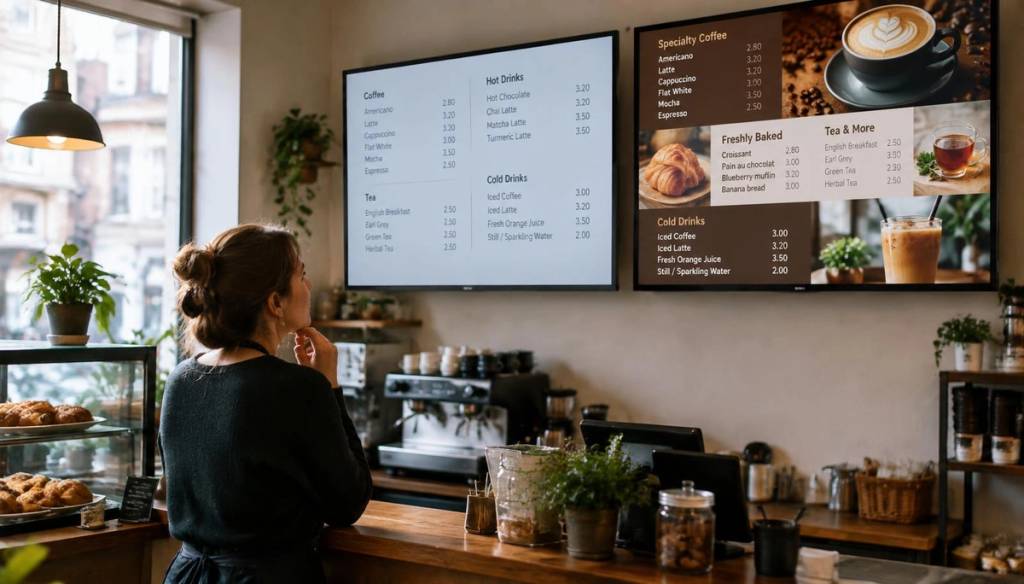
Free digital signage software can be a sensible way for a small business to put menus, offers or announcements on screen without adding a software bill. The real comparison is the licence cost against the time, equipment and control your screens need.
For a genuinely free route, start with Anthias if you have a Raspberry Pi and want locally played content; choose Xibo if you can host and maintain a more configurable system. Both require you to check player compatibility and handle setup and updates.
Key Takeaways
- Free can be enough: USB playback or a free plan may suit one screen with content that rarely changes.
- Free does not always mean unlimited: Check screen, user and storage caps, scheduling, support, branding and upgrade terms.
- Check compatibility first: Match the software to your TV, operating system and media player before you commit to setup.
- Count staff time: Manual updates, troubleshooting and security maintenance are part of the real cost of a free or self-hosted setup.
- Test offline behaviour: Find out whether content keeps playing during an internet outage and how changes catch up afterwards.
- Pay for control when it matters: Central management and scheduling can be useful when screens change often or sit across multiple sites.
What “free digital signage” can mean
Free digital signage software can refer to a free tier of a hosted platform, open-source or self-hosted software, or a basic way to play files from a USB stick. These options avoid or reduce a software fee, but they differ in setup effort, maintenance and how much control you get.
A design tool solves a different problem: it helps you create slides, images or videos. You still need a way to play those files on the screen, and a signage platform or compatible player if you want remote updates and central screen management.
With freemium software, the basic plan costs nothing but may restrict screens, users, storage or features. Check whether it includes content scheduling, integrations, support and unbranded playback, and find out what happens when you reach a limit or need a paid feature.
Open-source signage gives you software you can run and maintain yourself. It can avoid a recurring licence fee, but someone still needs to install it, manage any hosting, apply security updates and fix problems.
Anthias is an open-source option aimed at Raspberry Pi deployments, making it a fit for a screen where you can maintain a local player. Xibo separates its self-hosted content management system from its player apps, which can suit centrally managed screens but means checking the supported operating system and any player licensing for each device. For either option, confirm current installation requirements and test scheduling, offline playback and publishing changes on the actual hardware before preparing all your content.
A Raspberry Pi can act as a media player in a self-hosted setup, while USB playback skips much of the software and network management. Both can work well for stable content; USB is especially straightforward for one screen showing announcements that change occasionally.
If you update café menus, salon services, gym timetables or retail offers frequently, manual replacement can become a regular staff task. For an overview of how cloud-based signage can fit smaller organisations, see BryteCast’s digital signage options for small businesses.
Work out the full setup cost before choosing
Start with the screen you already have, then check its operating system and the player you plan to use. Some setups need a compatible app or browser; others need a separate computer or media player, so choosing the software before checking compatibility can leave you with a setup that will not run as intended.
Make a compatibility list before choosing: a Windows PC, an Android device, a Raspberry Pi or other Linux player, and a smart-TV operating system each need a suitable player. Android support does not automatically mean Fire OS support. Note the exact screen and player model and operating system, then confirm that the software offers a supported app or browser for that combination. Also check whether the player needs a separate host, particular permissions or a reliable network connection.
Make a list of the equipment and services the screen needs: a display, player, mount, cables and reliable network access. An existing TV can reduce the initial equipment spend, but it does not automatically provide the playback app, content scheduling or remote management you may want.
A Raspberry Pi or other self-hosted setup may avoid a recurring software fee, but include the time needed for installation, configuration, hosting where applicable and ongoing updates. If one staff member is the only person who can maintain it, their availability also becomes part of your plan.
For shared business screens, use named accounts and give access only to staff who need it. Keep the player and software updated, and make sure the business retains access to its uploaded content and account if the person who set everything up leaves.
Test the player, content and publishing workflow
Run a trial on the actual screen and player you intend to use. Install or open the player, connect the display, publish a short playlist, then check that it appears in the right orientation and that text is readable from the places customers or staff will view it.
Start with a simple playlist before testing digital signage templates, RSS feeds or app integrations. A separate design tool can prepare polished assets, but it does not by itself publish them remotely or manage the screens playing them.
Before putting time into a free plan, test its screen limit, supported devices, export options, branding or watermarks and usage restrictions. Check the upgrade conditions too, including whether your existing playlists and content can move with you if you need more screens or features later.
Then test the whole update process. If you need to change content remotely, try doing it from the dashboard; if updates involve replacing files or visiting each screen with a USB stick, note how much staff time that takes.
Compare local playback with cloud management
With USB playback, the player shows a prepared file stored locally. That keeps the file independent of a live network, but someone must replace it when a price, offer or opening time changes, and repeat the task for each screen that needs the new version.
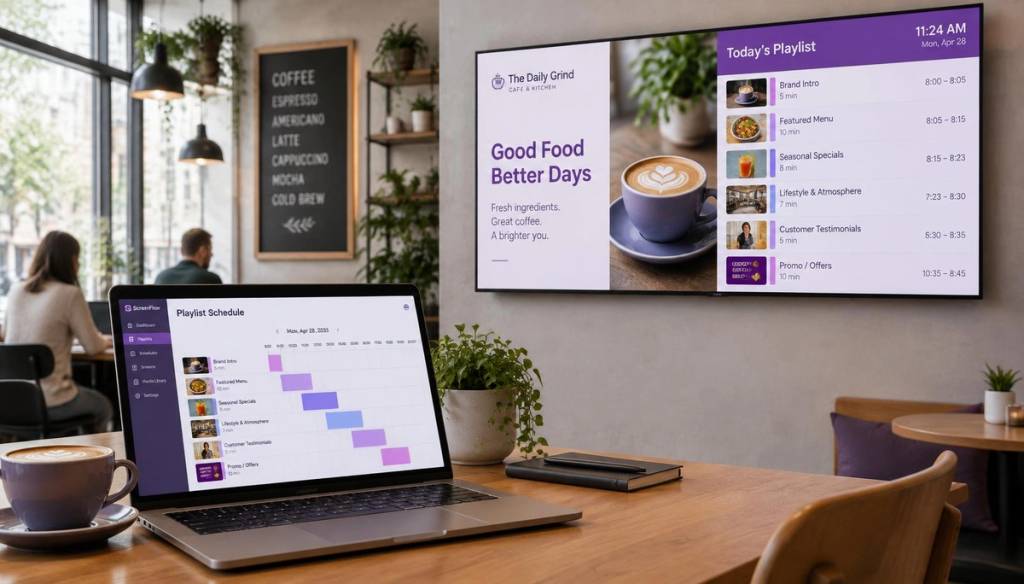
Cloud-based signage puts content management in an online dashboard, so one person can update several screens without visiting each one. BryteCast is a low-cost cloud option for small businesses, with content managed from a web dashboard.
Check whether a platform supports the playlists and scheduling your business actually needs, on the screens you will use. Automatic daypart changes can help a café switch menus or a gym display different class information at the right times, reducing the chance that staff leave yesterday’s details on screen.
Match the control method to how often your content changes. Independent retailers updating promotions, salons changing service menus and offices sharing announcements may get more practical value from central updates than a business whose screen shows the same information for weeks.
For examples of how screens can support different settings, browse digital signage use cases for gyms, cafés, offices and more.
Check offline playback and reliability
Cloud players differ in how they handle an internet outage: some keep a local copy of downloaded content, while others depend more heavily on a live connection. Test the setup you plan to use rather than relying on the word cloud.
Disconnect the network during playback and check whether the screen continues showing its last downloaded playlist. Then reconnect and see whether queued changes synchronise automatically, how long recovery takes and whether anyone needs to intervene.
USB playback avoids a live-network requirement for files already stored on the player, but those files stay unchanged until someone updates them in person. Test recovery after a power interruption as well as a network outage, especially if screens carry current opening hours, menus or safety information.
Keep a simple manual fallback for details that must stay current. For example, staff should know how to share an urgent change if a screen is offline and the display cannot be updated straight away.
Use this comparison table and decision checklist
These approaches vary by provider and configuration, so treat plan-dependent features as things to verify rather than promises. The table compares the usual trade-offs to help you decide what to test.
| Approach | Software cost | Setup and maintenance | Screens and remote management | Scheduling, support and branding | Offline behaviour |
|---|---|---|---|---|---|
| Freemium platform | May have a free tier; paid plans may apply as needs grow. | Usually less setup than self-hosting, but features and help vary by plan. | Screen, user or storage limits may apply; remote management depends on the platform and tier. | Scheduling, integrations, support and unbranded playback are plan-dependent. | Depends on whether the player caches content locally. |
| Open-source or self-hosted | May avoid a software subscription; allow for hosting and equipment where needed. | Requires someone to install, update and troubleshoot the system. | Configuration determines how screens are managed and what limits apply. | Features, available help and branding depend on the software and setup. | Depends on the player and whether content is stored locally. |
| USB playback | No signage subscription for basic file playback; a display and player may still cost money. | Simple to prepare, but staff must replace files and visit the screen. | Screen count is not usually a software-plan limit, but each screen needs its own update. | Scheduling and support are limited to what the player and file workflow provide; files can carry your branding. | Stored files play without a live network, but do not update themselves. |
| Paid cloud software | Ongoing subscription, with pricing and screen allowances varying by plan. | Less local system maintenance, though staff still need to manage content and access. | Central remote management is a key use; screen allowances depend on the plan. | Scheduling, support, integrations and branding vary by plan. | Depends on local caching and the player’s recovery behaviour. |
A free or self-hosted setup can fit a business with one or a few screens, stable content, suitable technical skills and enough time to handle updates and troubleshooting. Paid cloud software becomes more attractive when screens change often, several staff or locations need central control, or manual updates and downtime disrupt day-to-day work. If you're weighing up the paid route, compare BryteCast's pricing plans against the staff time a free setup would take.
Decision checklist
- How many screens and sites will you manage?
- Which TVs, operating systems and media players must the software support?
- How often will your content change?
- Do you need remote control, content scheduling or both?
- Who will maintain the player and apply security updates?
- What should each screen show if the internet or power fails?
- What will the hardware, any monthly subscription in pounds and staff time cost together?
Frequently Asked Questions
Does Microsoft have a digital signage solution?
Microsoft tools can prepare screen content, but you’ll need compatible playback software or a player to distribute it across displays.
Can I use Canva for digital signage?
Yes, you can use Canva to create visual assets for a screen, then export them in a format your player accepts. For the clearest result, design for the screen’s orientation and viewing distance rather than simply reusing a social media graphic.
Is there a free digital signage app for Amazon Fire Stick?
Xibo Android Player is an app to investigate, but Android support alone does not guarantee compatibility with an Amazon Fire Stick. Check Xibo’s current supported-device requirements and player licensing for your exact Stick model and Fire OS version before relying on it.
What is the best free software for creating signage?
The best free tool depends on whether you need to design content or publish it to screens: those are separate jobs. For design, prioritise the file formats and screen layouts you need; for playback, assess device support and management features.
Can a Raspberry Pi run digital signage without a cloud connection?
Yes, a Raspberry Pi can play locally stored signage content without a cloud connection when its player is set up for local playback. The cloud is only needed for functions that rely on it, such as sending remote changes or synchronising content.
Conclusion
Free digital signage software can work well when you have few screens, stable content and the time or skills to maintain the setup. Compare the full cost, including equipment and staff effort, and test compatibility, updates and offline playback before you rely on it.
When frequent changes, scheduling or central control matter, paid cloud software may save enough manual work to justify its subscription. Choose the simplest approach that reliably serves your screens and the people who depend on the information on them.
Get started
Ready to upgrade your screens?
Start your 7-day free trial. No credit card required — pair your first screen in minutes.