
Where to Put Digital Signage Screens in a Small Business
Guides 5 min read
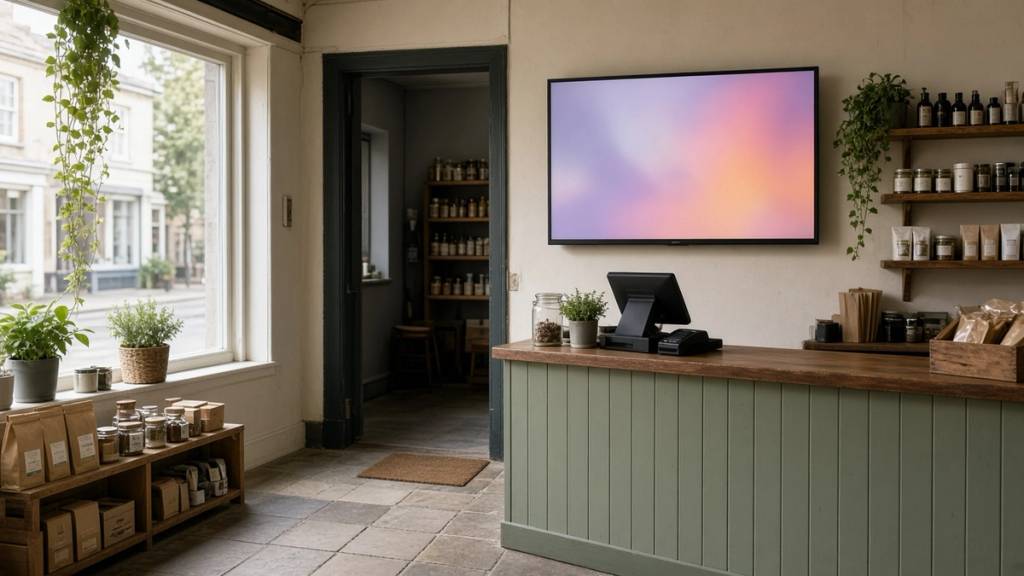
Put digital signage screens where people naturally pause and look: in queues, at the counter, in waiting areas and facing the window. Mount them close to eye level for the people who will read them, away from direct sunlight and glare, and within reach of a power socket and a good Wi-Fi signal. Most small businesses start with one to three screens and add more once they see which spot works.
Find the places where people pause
People read screens when they are waiting or deciding. Walk through your business as a customer and note where you stop.
The queue and the counter
The queue is the best spot in most cafés, takeaways and shops. People are standing still and deciding what to buy. A menu board or offer screen behind or beside the counter works well here.
Waiting areas
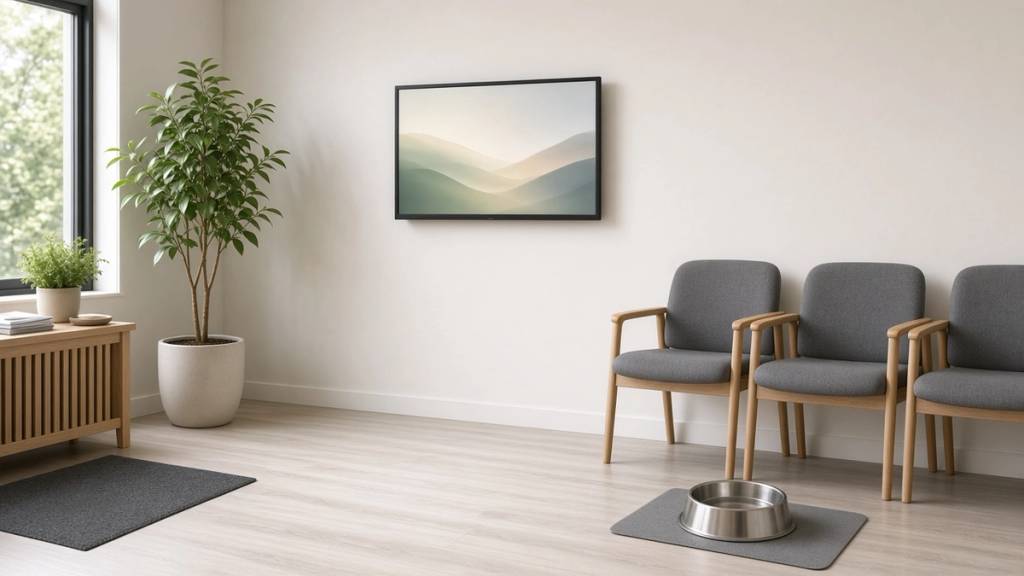
Salons, clinics, garages and estate agents have people sitting for several minutes. A screen in their line of sight, not behind their heads, is ideal for longer content such as services, team introductions and reviews.
The window
A window-facing screen is how you talk to people walking past. It needs short, bold messages because people only glance. Be aware that normal TVs can look washed out in direct sun; our guide to commercial displays vs consumer TVs explains when a brighter screen is worth it.
Entrances and exits
A screen by the door can welcome people, show opening hours and remind leavers about offers or reviews. Keep it simple; people are moving.
Staff areas
Back-of-house screens are useful for rotas, targets, safety notices and team news, the same way an office uses internal comms screens.
Get the height right
Mount the screen so the centre is close to the eye line of the people reading it:
- Standing viewers (queues, counters): around head height or just above, so it is not blocked by people in front.
- Seated viewers (waiting rooms): lower, so people do not have to crane their necks.
- Above the counter: fine for menus, but tilt it slightly down if it sits high.
If people need to look straight up to read it, it is too high.
Watch out for glare and light
Before you choose a wall, look at it at different times of day. Sunlight hitting the screen and bright lights reflecting off it both make content hard to see. Moving the screen a metre or angling it slightly often fixes the problem.
Check power and Wi-Fi before you drill
A screen in the perfect spot is no use if you need an extension lead across the floor.
- Power: a socket close to the screen, with cables tidied into a trunking channel. Never run cables where people walk.
- Wi-Fi: stand at the spot with your phone and check the signal. BryteCast plays content in a web browser, so the TV or streaming stick needs a steady connection to receive updates.
- Device: if the TV is not smart, a streaming stick behind it can open the player. See our guide on how to turn any TV into digital signage.
How many screens do you need?
Start with the spot that gets the most attention, usually the counter or the waiting area. Run it for a few weeks and watch how people react. Then add a second screen where it solves a different problem, such as the window or staff room.
As a guide:
- Small café or salon: one menu or services screen, plus an optional window screen.
- Shop: one by the till, one in the window.
- Gym: one at reception for timetables and offers, one on the gym floor.
BryteCast's Starter plan includes 3 screens (up to 5), Business includes 5 (up to 10) and Growth includes 10. Full details are on the pricing page.
Match the content to the spot
Each screen should have its own playlist that suits where it is:
- Queue: menu, prices, today's offer.
- Waiting area: services, reviews, team, longer explainers.
- Window: one big offer, opening hours, a reason to come in.
- Staff room: rotas, notices, targets.
With BryteCast you build playlists in one dashboard and assign each one to the right screen, or group screens that should show the same thing.
Pre-installation checklist
- Choose the spot where people pause.
- Check the eye line from where viewers stand or sit.
- Look for glare in the morning and afternoon.
- Confirm a socket nearby and a strong Wi-Fi signal.
- Use a wall bracket rated for your screen and a suitable wall fixing. If in doubt, use a professional installer.
- Hide and secure cables.
- Pair the screen: open brytecast.com/player on the TV and type in the code shown in your BryteCast dashboard.
- Stand where customers stand and check the content is readable.
FAQs
What is the best place for a digital signage screen in a shop?
Usually near the till or queue, where people stand still and decide what to buy. A window screen is a good second spot for passers-by.
How high should a digital signage screen be?
Close to the eye line of the viewer: around head height for standing customers and lower for seated waiting areas.
Do I need a separate media player?
Not always. BryteCast runs in a web browser, so a smart TV with a modern browser or a streaming stick can open the player.
Can different screens show different content?
Yes. Assign a different playlist to each screen, or group screens that should show the same thing.
Start with one screen
Pick your best spot, put up one screen and see how customers respond. BryteCast Starter is £25 a month (or $29), with 10% off annual billing and a 7-day free trial. Try BryteCast free for 7 days.
Get started
Ready to upgrade your screens?
Start your 7-day free trial. No credit card required — pair your first screen in minutes.