
Waiting Room Screens for Vet Practices: What to Show and What to Leave Off
Use cases 4 min read

A vet waiting room screen should help owners while they wait: show your opening hours and out-of-hours arrangements, explain services and health plans, remind people about routine care like vaccinations and parasite checks, and introduce the team. Keep the tone calm, avoid upsetting images, and do not advertise prescription-only medicines by name. Then manage it from one dashboard so the content stays current without anyone at reception touching the TV.
Why vet waiting rooms suit screens
Owners in a vet waiting room are often anxious, sometimes holding a nervous animal, and usually waiting longer than they expected. Reception is busy with phones and payments. A well-planned screen can:
- Answer common questions before they reach the desk
- Explain services owners did not know you offer
- Make the wait feel shorter and calmer
- Remind people about routine care they might book next time
What to show
Practice information
- Opening hours, including bank holidays
- Out-of-hours and emergency arrangements, with the number to call
- How to book, cancel or order repeat prescriptions
- Parking, payment and insurance claim information
Routine care reminders
General reminders about routine care work well because they prompt a conversation, not a sale:
- Annual health checks and vaccinations
- Flea, tick and worming checks
- Dental checks
- Microchipping and keeping contact details up to date
- Weight checks and nurse clinics
Keep these general and invite owners to ask the team, rather than giving clinical advice on screen.
Health plans and services
If your practice runs a health plan, explain what it includes and how to join. Add slides for services owners may not know about, such as nurse clinics, puppy and kitten checks or senior pet checks.
Meet the team
Short slides with a photo, name and role for vets, nurses and reception staff help nervous owners feel they know who they will see. Always get each person's permission before showing their photo.
Patients of the week
Many practices like to show happy patients. If you do, get the owner's written consent first, and avoid images of injuries or surgery.
Reviews
Positive feedback from other owners can reassure new clients. BryteCast lists Google Reviews as a content type on every plan.
What to leave off
Named prescription-only medicines
UK rules restrict advertising prescription-only veterinary medicines to the public. Promote the service ("Ask us about a parasite check") rather than a named prescription product. If you are unsure, check with your practice's compliance lead or the Veterinary Medicines Directorate guidance.
Upsetting images
No surgery photos, injuries or sad end-of-life messages in a space where owners may be waiting for bad news. Keep imagery calm and positive.
Too much text
Owners glance at the screen between looking after their pet. One message per slide and large text work best. Our guide to what deserves a place in a playlist helps you cut the loop down.
Sound
A screen with audio in a room full of nervous animals is rarely a good idea. Run it silently.
Where to put the screen
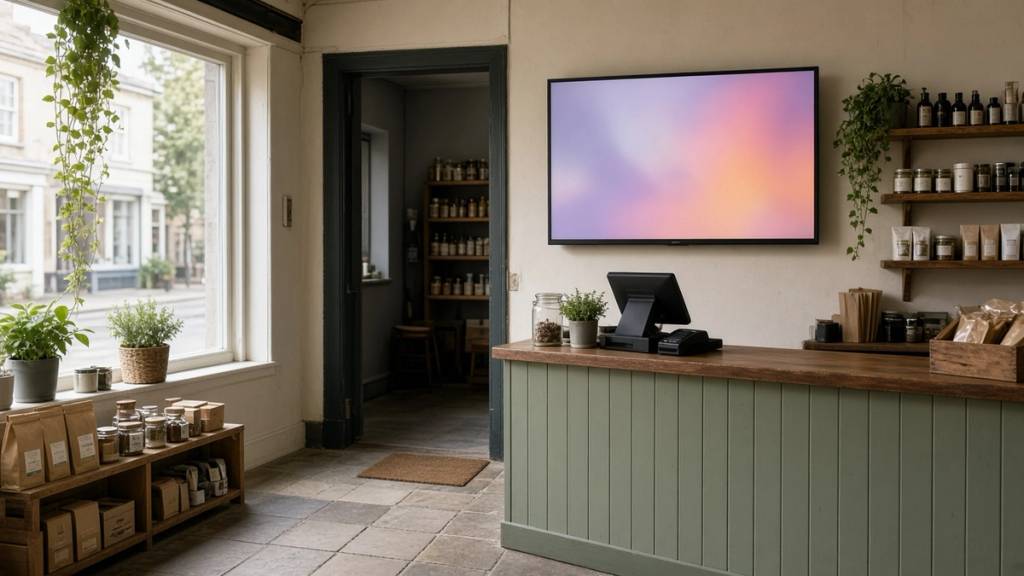
Place it where seated owners can see it without turning round, away from the reception desk so people do not crowd the counter while reading it. If dogs and cats wait in separate areas, a screen in each can show slightly different content.
Keeping it current across sites
Practices with more than one site can group screens and assign the same playlist to all of them, then add site-specific slides such as local opening hours. Prepare seasonal content in advance, for example firework season advice in autumn or Christmas opening hours in December, so it is ready to go on when the season starts and comes off when it ends. Our remote screen management guide explains how multi-site groups work.
Setting up a screen
- Choose a TV with a modern web browser, or add a streaming stick.
- On the TV, open brytecast.com/player.
- Type the code shown in your BryteCast dashboard into the TV to pair it.
- Build a playlist of your slides and assign it to the screen.
FAQs
What should a vet practice show on a waiting room TV?
Opening hours, out-of-hours arrangements, services, health plans, routine care reminders, team introductions and reviews. Keep it calm and general.
Can we advertise flea and worming treatments on screen?
Promote checks and services rather than named prescription-only medicines, which UK rules restrict advertising to the public. Check with your compliance contact if unsure.
Can we show photos of patients?
Yes, with the owner's written consent. Avoid images of injuries or procedures.
Do we need special screens?
No. BryteCast runs in a web browser, so a standard TV with a browser or a streaming stick will work.
Can one person update screens at several practices?
Yes. Content is managed from one online dashboard, and screens can be grouped so one change applies to all of them.
Try it in your waiting room
Set up one screen in your waiting room and see how owners respond. BryteCast Starter is £25 a month (or $29), with 10% off annual plans and a 7-day free trial. Start your free trial.

Get started
Ready to upgrade your screens?
Start your 7-day free trial. No credit card required — pair your first screen in minutes.