
A Business Screen Playlist: What Deserves a Place?
Guides 11 min read
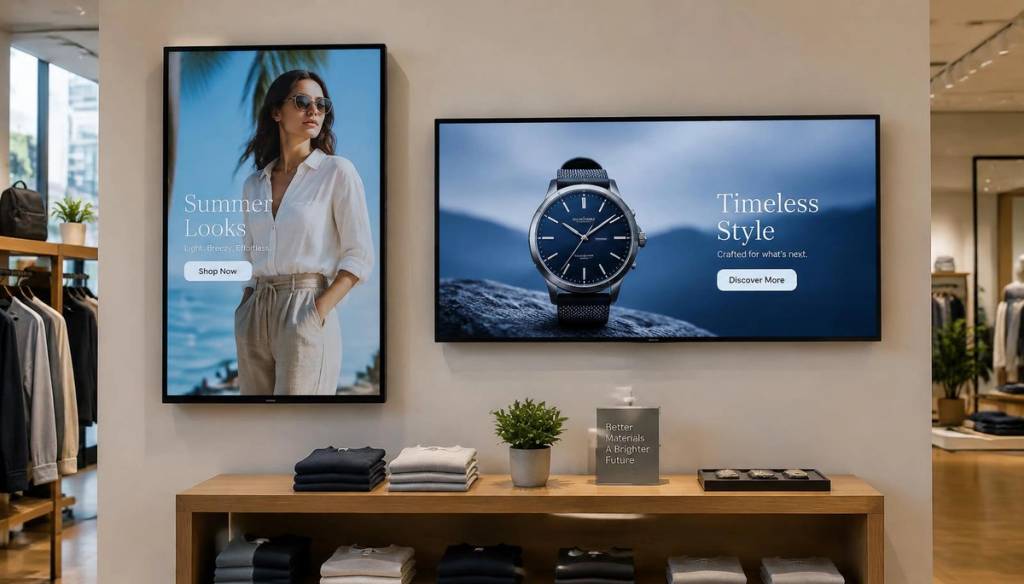
Good digital signage playlist content helps people understand something, make a choice or take a useful next step. For a small business with one or a few screens, the aim is not to fill every moment: it is to give the right messages enough room to be noticed.
Key Takeaways
- Keep a slide only when its audience, purpose and timing are clear.
- Give essential information a reliable place, then add only the offers and updates that matter to people in the room.
- Use a manageable loop and give each slide enough time for its message to land.
- Order urgent content early, then vary the sequence without making the transitions confusing.
- Schedule messages for relevant times and remove them promptly when they expire or become inaccurate.
- Preview the whole loop on the intended screen and check that it is readable, current and playing correctly.
Give every slide a clear job
A digital signage playlist is an ordered sequence of media that plays on a screen. It might combine images, short videos, text announcements, menus, timetables or other useful updates; the playlist controls the sequence, not the value of each item.
Before adding a slide, ask: Who needs this, what should they take away, and why does it belong on this screen now? If you cannot answer those questions clearly, leave it out. A message that serves no audience need takes time away from one that does.
Use a simple standard: keep content only if it helps viewers do something, understand something important or make a timely choice. A service notice may help someone prepare for an appointment; a current offer may help a customer choose what to buy. A decorative slide with no useful purpose has a weaker claim on the loop.
Keep the playlist distinct from the screen layout. A playlist sets the order in which content appears, while a layout or screen zones determine where it sits, such as a main area alongside a smaller information panel. Choose content that suits the space: a short notice may fit a narrow zone, while a menu or visual offer may need a larger area.
A channel is another way of organising what a screen receives, often grouping a playlist or other content for a particular screen or audience. Thinking separately about the item, its place in the sequence, the channel and the layout helps prevent the common mistake of trying to fix a poor content choice by rearranging the screen.
Create and edit a playlist in your signage editor
Use the editor as a curation tool, not just a place to upload files:
- Choose the destination. Select the screen or channel and confirm its layout and audience.
- Start with a blank playlist or a suitable template. If you use a template, replace its sample text and media, and remove any sections that do not serve the screen's purpose.
- Add and arrange content. Give each item one clear message, place urgent information early, and set a play time that suits what viewers need to take in.
- Set the schedule and review. Choose when the playlist should run, preview the full sequence on the intended display, correct any cropping or readability issues, then publish and check that the screen is showing the updated version.
Balance essential information, offers and useful updates
Give essential information a prominent, dependable place. Opening hours, service details, appointment instructions and a café menu can affect what viewers do next, so they should not be buried beneath a succession of promotions.
Promotions can earn a slot when they are current and relevant to the people in that space. Choose the offer most likely to matter now rather than treating every available deal as a reason to add another slide. A screen in a salon, for example, may need a treatment offer; an office screen may be better used for a visitor instruction or team announcement.
Useful updates make a playlist feel connected to the day. A class change, temporary service notice or revised menu can help people act on accurate information, but changing feeds need moderation: review what appears so an unrelated or unsuitable post does not take over the screen.
Choose content formats for the message, not just for variety. A static slide can suit a clear announcement; a short video can show a process or product; a changing feed can provide updates when someone is responsible for checking it. Interactive signage only earns space when viewers can use it easily and it offers a clear next step.
Make every format easy to follow. Use strong contrast, concise wording and text that can be read from the usual viewing distance. Do not use colour alone to distinguish important information, and add captions to video so the message remains clear when the screen is muted.
Set a loop length viewers can follow
Start with the time people usually have to see the screen. Someone walking past a shop window may only catch a brief glimpse, while a person waiting for an appointment or a class may see the loop more than once.
As a practical starting point, set an individual slide to 8 or 12 seconds, then adjust for what viewers need to read or watch. Cornell University IT's basic playlist guidance lists 8 or 12 seconds as typical; treat these as starting points, not fixed rules, and allow more time only when the message needs it.
Use less time for a simple image with a short headline and more for a slide with several details or a video that needs to be watched. If the message needs a long explanation, simplify it or give viewers another way to get the full details rather than making every person wait through a longer loop.
Keep the playlist short enough that essential information comes round again promptly. When the rotation feels too long, remove low-priority content before extending it further. A longer loop does not make an unnecessary slide more useful.
Preview the full sequence on the actual display before publishing. Check that each item fits the screen’s aspect ratio, media plays correctly and text stays legible from where people stand or sit; a design that looks tidy on a laptop may be difficult to read across a room.
Order the sequence around urgency and attention
Place urgent or time-sensitive information early in the loop so viewers are less likely to wait through unrelated material before seeing it. Follow an important notice with its context or next step, such as where to ask for help or how to respond.
Avoid stacking several unrelated promotions together. Alternate content types, such as a menu, a short offer and a useful update, to give the rotation variety while keeping each transition easy to understand.
Give each slide one main message. When a single screen tries to carry several offers, instructions and announcements at once, viewers have to work out what matters before they can act. Split distinct messages into separate slides only when each one deserves time in the loop.
Consider how the sequence feels from any point, not only from the first slide. People may look up halfway through a playlist, so each item should make sense on its own rather than depending on a previous message for context.
Example loop order
- Urgent notice and next step: a service change and where to get help (8 seconds).
- Essential information: opening hours or instructions viewers need (8 seconds).
- Relevant offer: a current promotion suited to the people in the space (8 seconds).
- Useful update: a menu, timetable or other timely item (8 seconds).
Total loop time: Add the play times for the whole sequence and confirm the combined duration in the editor's full-loop preview. This sample uses an 8-second setting for each slide; if one needs more reading time, change that slide to 12 seconds and check the total again.
Schedule relevant content and retire stale slides
Show content only when it applies. Breakfast information belongs in the morning; a class timetable or service announcement should appear when it helps people plan. Scheduling by time or day keeps viewers from seeing an offer or instruction that no longer fits the moment.
Give every time-sensitive message an end point and assign someone to review it. When an offer expires or a notice changes, remove or replace it promptly rather than relying on someone to remember it later.
Use playlist scheduling to select what viewers see, not to justify adding more slides. Different times of day may call for different, smaller selections; a café’s morning menu and afternoon offer do not both need to occupy every rotation.
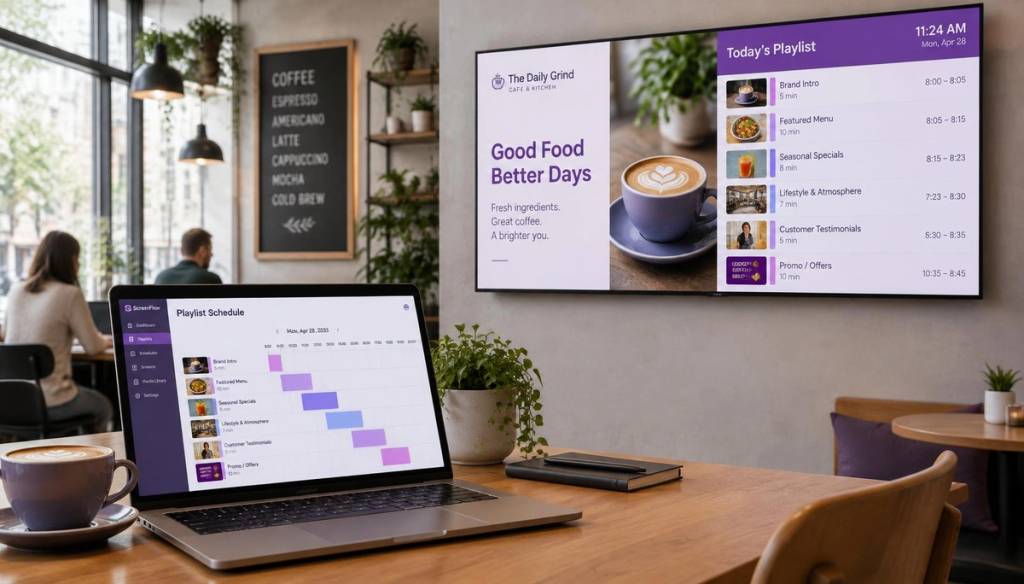
For example, BryteCast is cloud digital signage software with playlists and scheduling managed from a web dashboard. This kind of setup can help a small team keep content matched to the time and screen where it is relevant.
For a dashboard-based setup, keep the target screen, playlist order and schedule in view together: confirm each item belongs in that screen's loop, set its relevant time window, then preview the published version on the display. Revisit the schedule whenever an offer or notice changes, and remove expired content rather than relying on the next routine review.
When a playlist changes, check that the updated version is playing on the intended screen. Keep a simple record of who owns each time-sensitive item and when it needs reviewing; this makes it easier to catch a notice that has been copied into more than one playlist.
Use a quick curation checklist before publishing
Run through this checklist whenever you review or update the loop:
- Audience and purpose: Can you name who needs each slide and what they should understand or do? Remove anything without a clear answer.
- Timing: Does the item belong on this screen at this time, and is there an end point or review date for anything temporary?
- Priority: Can viewers find essential information easily, without it being crowded out by offers or lower-priority updates?
- Readability: Is the wording concise, the contrast strong and the text readable from the normal viewing position? Are video captions present?
- Playback: Does the sequence work on the intended screen, with the right proportions and any network-dependent media playing as expected?
- Evidence: Is the content still useful? A play count or record that a slide appeared shows that it ran, not that people noticed it or acted on it.
To measure whether a playlist is meeting its goal, name the action you want and choose a signal close to it: QR scans or booking enquiries for a response, or questions to staff for an awareness message. Note the current pattern before changing the playlist, then compare it with a later, comparable period and consider other changes that could affect the result. If the signal does not improve, check whether the message is visible, clear and scheduled for the right moment before replacing it. A play count confirms delivery, not impact.
Use the answers to make deliberate edits: keep what is useful, revise what is hard to follow and remove what is stale. A short, relevant rotation is easier to maintain than a playlist that grows every time someone has a new message to share.
Frequently Asked Questions
Should a digital signage playlist use sound?
In a shared public space, keep sound off by default because it can interrupt conversations or distract people nearby. Use audio only where viewers expect it and staff can manage the volume, such as a dedicated class instruction area.
Can a QR code work on a business screen playlist?
Yes, a QR code can take viewers to a booking page, full menu or detailed service information. Tell people what they will find after scanning, and include a short readable web address as an alternative for anyone who cannot scan the screen.
How can I make a playlist work for viewers who only glance at the screen?
Put the subject and key point at the start of each message, so a viewer can understand it without seeing the previous slide. Avoid references such as “as mentioned earlier” that only make sense if someone has watched the whole rotation.
What should I do if a scheduled message becomes inaccurate before its end date?
Remove or replace it as soon as you learn it is wrong, then check every screen or playlist where the same message appears. If the correction is urgent, use a direct update rather than waiting for the scheduled review.
Conclusion
The best digital signage playlist content earns its place by helping the people in front of the screen. Keep essential information visible, select timely offers and updates carefully, and give each message an appropriate place and play time.
Review the sequence regularly, schedule content only when it applies and remove slides that are no longer useful. A clear, current loop gives viewers a better chance of finding what they need without making the screen feel crowded.
Get started
Ready to upgrade your screens?
Start your 7-day free trial. No credit card required — pair your first screen in minutes.