
Digital Signage Playlist Scheduling: A Practical UK Guide to Keeping Screens Current
Guides 13 min read
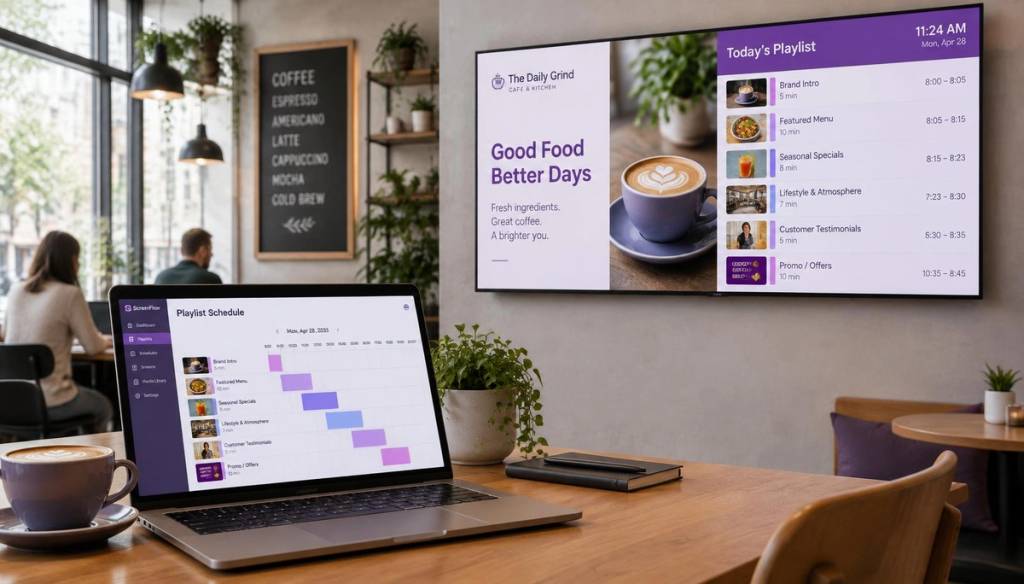
Digital signage playlist scheduling only feels complicated when you plan it like a one-off project. Most small businesses are running a single screen, and the real challenge is making sure that screen stays current without daily manual effort. This guide covers how to build a weekly plan, schedule by time of day, set sensible dwell times, and keep promotions from quietly going stale.
Key Takeaways
| What to set up | Why it matters | Simple rule to start |
| Playlist vs schedule | Stops content mix-ups and makes updates predictable | Playlist is the content mix, schedule is when it runs |
| Weekly content plan | Keeps you consistent without overthinking it | Pick a small set of items and reuse them by daypart |
| Dayparting | Matches what customers expect at each time of day | Breakfast, lunch and evening, plus weekend blocks |
| Dwell time per item | Affects readability and how quickly the message repeats | Use 10 to 20 seconds for most tiles |
| Promotion end dates | Prevents stale content looping forever | Every promotion gets a start and an end date |
| One screen, less admin | Fits cafés, gyms, salons, offices and independents | Do one 30-minute weekly routine, then handle exceptions only |
What a playlist is, and what a schedule is
It is worth making the terms clear, because this is where most digital signage scheduling setups get messy.
Playlist: the content mix
A playlist is the set of items you want to rotate on the screen. That might include hero offers, menus, class timetables, opening hours, or a rotating customer message.
Schedule: the time rules
A schedule is when the playlist runs. It might change by time of day, by weekday versus weekend, or for a one-off event.
In practice you build:
- One or more playlists (for example "Café Breakfast Loop", "Café Lunch Offers", "Café Evening Menu")
- Time-based rules that decide which playlist is active at what time
The simple mental model: the playlist is the what, the schedule is the when.
Build a weekly content plan before you touch the timetable
Start with a weekly content plan, not a blank screen. That way scheduling becomes a straightforward map from your plan to your playlists and time windows.
A workable weekly plan usually has three layers:
- Evergreen items: menu highlights, class types, core services
- Rotating items: today's special, PT availability, weekend slots
- Operational basics: opening hours, key messages, contact details
How many items should be in rotation?
You do not need to schedule everything every day. Pick enough items to avoid obvious repetition while keeping updates manageable. A practical target for a single screen is eight to twelve items in rotation, refreshing two or three of them each week.
Lock the structure, then only swap specific items when something genuinely changes: a new offer, updated prices, an event notice.
Dayparting: breakfast, lunch, evening and weekends
Dayparting is how you make one screen feel relevant all day. Instead of a single generic loop, you schedule content that matches what customers are actually looking for at that hour.
Map dayparts to real customer behaviour
- Breakfast: quick grab-and-go offers, coffee, pastries
- Lunch: specials, meal deals, order-ahead messages
- Evening: desserts, event nights, seasonal promotions
- Weekend: different opening hours, a longer breakfast window, events
If your menu changes at fixed times, this is the mechanism that does it for you. Our guide to automating breakfast, lunch and dinner menu switchovers walks through that specific case in more detail.
Use opening hours and quiet-period rules
Even if the screen can stay on all day, it usually makes sense to schedule active playlists around your opening hours. For quieter periods, show slower-changing content or a lighter operational message rather than hammering the same offer at an empty room.
How long should each item stay on screen?
Dwell time is how long each item holds before the playlist moves on. Too short and the message is unreadable. Too long and the screen feels static.
A simple dwell time approach
- 10 to 20 seconds per item for most text-and-image tiles
- Longer for announcements where the message matters, such as a closure notice or a change to opening hours
Once you have eight to twelve items in rotation, resist the urge to micro-edit everything. Refresh a few pieces each week and let the schedule place them in the right dayparts. For a small business with limited time, that is the whole point: keep the screen current with a handful of touches, not constant tinkering.
Scheduling seasonal campaigns and one-off promotions in advance
Seasonal campaigns are where scheduling earns its keep. Plan them ahead so the content is ready, timed correctly, and removed automatically when the campaign ends.
Plan seasons using a date window
For one-off or seasonal work, set:
- A start date and an end date
- Which dayparts the promotion appears in
- Any screen-specific overrides, for example one screen showing a different message during the promotion
Recurring rules versus one-off overrides
You want two layers:
- Recurring rules: the normal weekly timetable of breakfast, lunch and evening loops
- One-off overrides: replacing an item or a whole playlist for a specific date or short window
Built this way, screen behaviour is predictable and you avoid last-minute rescue work. Promotions should never run indefinitely. A screen showing the same offer for three months straight is not "set and forget", it is background noise. Treat every promotion as a scheduled job with an end date.
What to do if a screen is offline at switchover time
In real life a screen sometimes drops offline right when a switchover is due. The job is to make that harmless.
Rely on offline playback
Look for a platform that keeps playing the last valid playlist rather than going blank when the connection drops. Alongside that, a few operational habits help:
- Keep a fallback playlist for each daypart, even if it is a simpler one
- Avoid tight switchover times — switch at 09:00 rather than 08:58
- Test the switchover after any timetable change
Plan for re-sync
When the screen comes back online it should realign with the current schedule automatically. Screen status and monitoring matter here, particularly across more than one site. If you are running screens in several locations, our guide to remote screen management for multi-location signage covers the monitoring side properly.
A 30-minute weekly routine for busy owners
If you run a café, gym, salon or independent shop, your weekly time is precious. This routine keeps a screen current without becoming a job in itself.
- 10 minutes — check what needs to change. Look at the next seven days and note the items that must rotate: today's special, this week's offer, a weekend notice.
- 10 minutes — update two or three pieces. Replace the rotating tiles, update the text, and confirm images or class names are correct.
- 5 minutes — review the dayparts. Check the breakfast, lunch and evening blocks and weekend windows still match your opening hours.
- 5 minutes — schedule and sanity-check. Confirm start and end dates for any promotions, then preview the loop so it reads properly.
Once this routine is stable, the rest of the week is exceptions only.
Worked example: a café timetable
Here is a realistic setup for a single café screen.
Step 1: create three playlists
- Café Breakfast: coffee offer, pastry highlight, opening hours, allergen notice
- Café Lunch: lunch special, meal deal, order-ahead message, contact details
- Café Evening: dessert highlight, seasonal promotion, event notice, opening hours reminder
Step 2: schedule by daypart
| Playlist | Monday to Friday | Saturday |
| Breakfast | 07:30 to 11:30 | 08:00 to 13:00 |
| Lunch | 11:30 to 15:30 | 13:00 to 16:30 |
| Evening | 15:30 to close | 16:30 to close |
Step 3: set dwell time and loop size
Nine to eleven items across each playlist, with each tile holding for roughly 12 to 18 seconds. The loop completes often enough to feel current, but slowly enough for people to read.
Step 4: give promotions end dates
For a weekly lunch special, set the start to Monday 11:30 and the end to Friday 15:30. For a seasonal campaign, schedule the override playlists in advance so the screen reverts to the normal weekly plan on its own once the end date passes.
Worked example: a gym timetable
The same approach applied to one gym screen, built around class times and PT availability.
Step 1: playlists for the gym day
- Morning Classes: the 06:00, 07:00 and 08:00 class list, opening hours, contact details
- Midday Classes: 12:00 and 13:00 sessions, a featured class description, member reminder
- Evening Classes: the 17:00, 18:00 and 19:00 timetable, PT booking prompt, weekend note
- PT Availability: a booking prompt plus coach profile slides, rotated by who is available
Step 2: schedule the blocks
- Monday to Friday: Morning 06:00 to 11:30, Midday 11:30 to 16:30, Evening 16:30 to close
- Weekends: one block for morning sessions, one for afternoon sessions
Step 3: keep the structure, update the entries
Most weeks the timetable structure stays identical. When classes change you update only the affected items — swap a coach name, change a class title — which keeps the weekly effort small. It is also worth planning an override for sudden closures or urgent messages, so you are not editing everything by hand under pressure. Our guide to syncing live class timetables without manual staff updates goes further on this.
Common mistakes with digital signage scheduling
Most problems here are not technical. They are planning and housekeeping.
Too many items in rotation
Cram in dozens of slides and the screen takes far too long to reach the item customers actually need. It also makes updates harder, because everything is entangled.
No end dates on promotions
Without an end date the playlist never returns to your normal content, and the offer stops registering as an offer.
Out-of-date pricing and menus
Treat prices as time-bound content. If your menu changes monthly, schedule a monthly update. If you run daily specials, build a daily rule.
Everything set to always-on
Always-on is fine for the hardware. For content it is a problem: if playlists never switch, you cannot use dayparting and the messaging drifts out of date.
Treating a playlist as a one-off upload
Playlists need maintaining like a timetable. Recurring rules and a short weekly review cycle are what keep the content fresh.
What to look for in scheduling software
For UK small businesses, the useful test is whether the software matches how you actually work week to week: simple planning, remote updates, and predictable screen behaviour.
BryteCast is built around three steps — upload content, build playlists, push live — with scheduling, an activity log and offline playback alongside them. You can see how the screen side works on the screens page.
Beyond the basics, scheduling gets easier when a platform offers:
- Templates and clear time windows for recurring playlists
- Layered scheduling rules for when one set of rules is not enough
- Multi-location management for when you expand past one screen
Even on a single screen these ideas pay off, because playlist scheduling is about rules rather than manual edits. If you are starting from scratch, the small business use case explains playlists and scheduling in plain terms, and the gyms and fitness page shows how timetable-led venues tend to set theirs up.
Conclusion
Playlist scheduling is how you keep screens current without daily manual effort. Plan a weekly timetable, use dayparting for breakfast, lunch, evening and weekends, and give every promotion a clear end date so nothing quietly goes stale.
Once the playlist structure is set, a 30-minute weekly routine is the only regular admin. From there the screen looks after itself through recurring rules and one-off overrides, even when a device drops offline at switchover time.
Frequently Asked Questions
What is the difference between a digital signage playlist and a schedule?
A playlist is the set of content items that rotate on screen. A schedule is the timetable that decides when that playlist runs. Keeping the two ideas separate is what makes playlist scheduling manageable.
How do I schedule content on digital signage without updating it every day?
Use recurring rules for your weekly loop, then replace only a small number of items once or twice a week. The schedule handles the rest.
What does dayparting mean for a café or gym?
Dayparting means switching playlists by time of day — breakfast, lunch, evening and weekend blocks. It helps a single screen match customer intent without constant manual edits.
How long should each item stay on screen?
For most tiles, 10 to 20 seconds is a practical range, depending on how much text is on them. The aim is to keep messages readable while limiting how often the loop repeats.
Should I use recurring rules or one-off overrides for promotions?
Use recurring rules for the normal weekly timetable, then apply one-off overrides when something changes for a specific date window. That combination is more reliable and much easier to audit.
What happens if my screen is offline when the switchover time arrives?
Ideally the screen keeps playing the last valid playlist from local storage, then realigns with the current schedule once it reconnects. That stops it going blank or showing the wrong content.
Is scheduling software worth it if we only have one screen?
Yes. Playlist scheduling is mainly about rules and consistency rather than scale. Even with one screen, the right setup handles the timetable automatically and removes the daily manual effort.
Get started
Ready to upgrade your screens?
Start your 7-day free trial. No credit card required — pair your first screen in minutes.