
How to Turn Any TV Into Digital Signage in Under 10 Minutes
Guides 5 min read
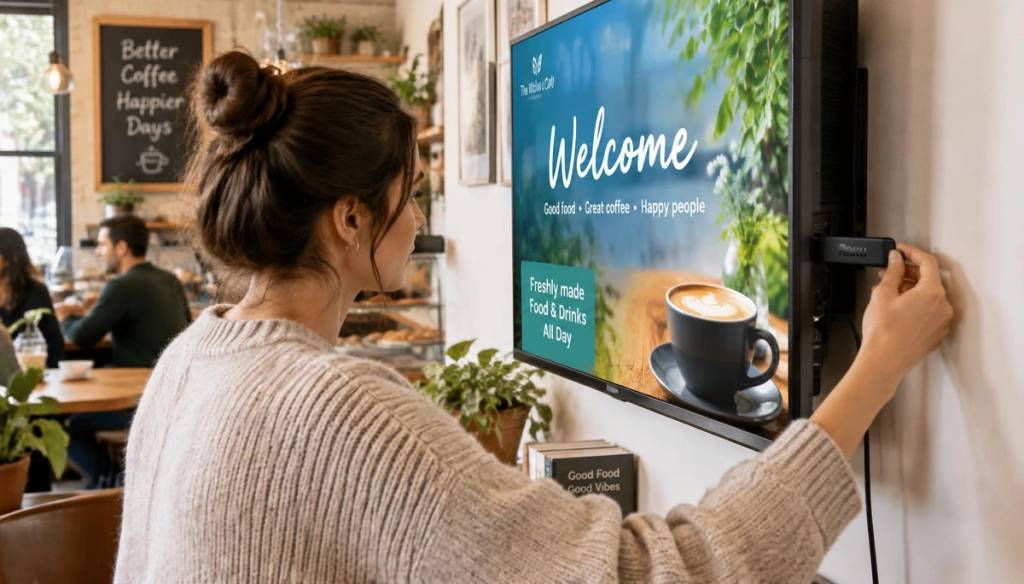
The biggest myth in digital signage is that you need specialist screens, a professional installer, and a four-figure setup budget. You don't. If you have a TV with a web browser and an internet connection, you're about ten minutes away from a screen you can update from your phone, from anywhere.
Most venues already have a screen on the wall. The smart move is to swap the content, not the hardware. BryteCast is a cloud-based SaaS platform that turns any display with a modern browser into a fully managed digital signage screen, with no media player, streaming stick, or extra hardware connector required.
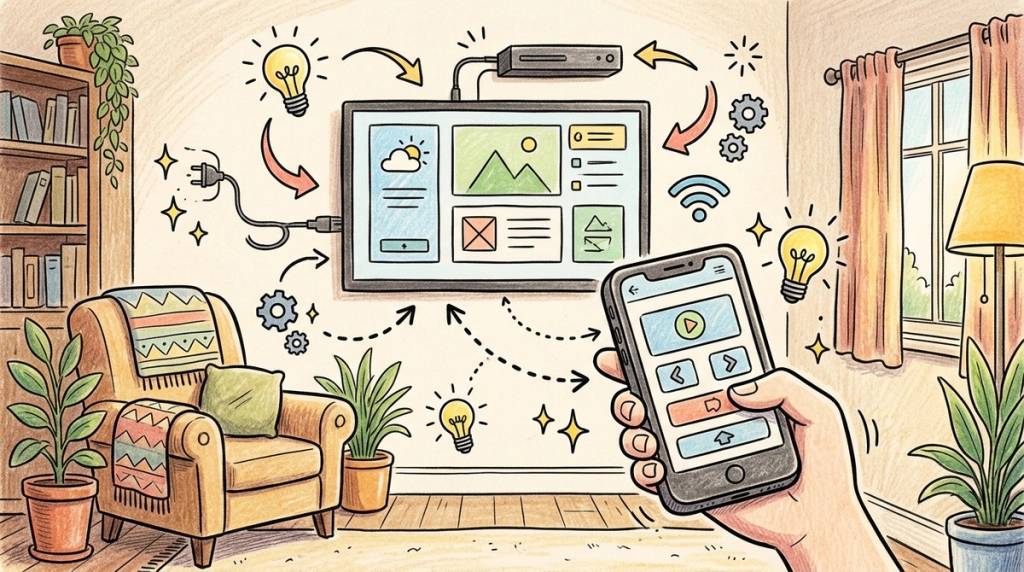
What you actually need
- Any TV or display with a web browser — the smart TV in your reception, gym, or café right now is perfect. Commercial displays, tablets, and any device that can open a modern browser all work.
- An internet connection — Wi-Fi or wired, anything that gets your screen online.
- A BryteCast account — the cloud dashboard where you manage screens, playlists, schedules, and content. BryteCast is the software layer; the TV you already own is the only screen hardware you need.
That's it. No Fire Stick, no Chromecast, no proprietary media player. BryteCast runs entirely in the cloud, and your display's built-in browser is all the client you need. If you happen to have an older display with no browser at all, that's the one edge case where a cheap streaming device could help, but BryteCast itself remains cloud SaaS through and through.
1. Open the BryteCast player in your TV's browser
Turn on your TV, open its web browser, and navigate to the BryteCast player URL. The screen displays a 6-character pairing code. That code is the screen's identity in your cloud workspace. No downloads, no installs, no hardware to plug in.
If your device supports it, you can also install the BryteCast PWA for a more kiosk-like experience. But a plain browser tab works just fine for most setups.
2. Pair the screen in your dashboard
Sign in to your BryteCast dashboard, click Add Screen, and type the six-character code from your TV. The screen instantly appears in your workspace with live online/offline status. Name it something you'll recognise, like "Front Counter", "Studio 2", or "Reception".
From this point on, every change you make in the dashboard pushes to the screen in real time over the internet. No USB sticks, no manual refreshes, no walking over to the TV.
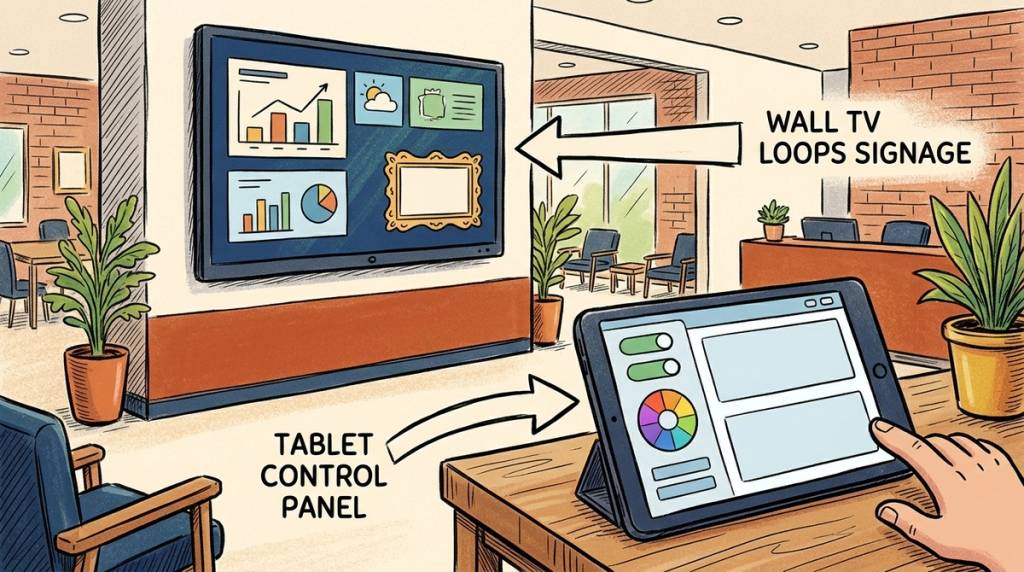
3. Upload the content you already have
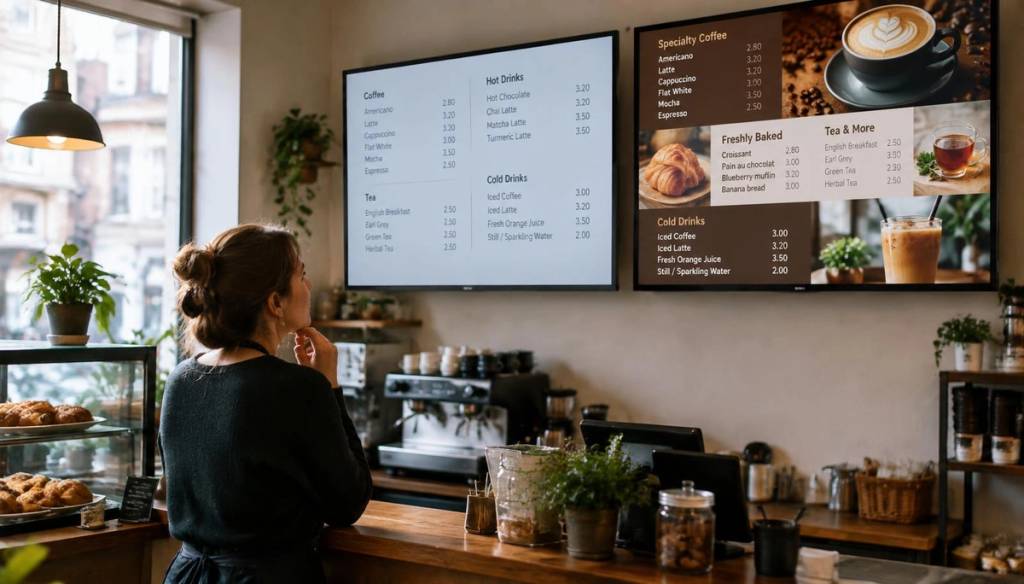
Promo images, menu boards, short videos, YouTube clips, even Canva designs embedded from a link. Most customers go live with assets sitting in a marketing folder already. There's no need to produce new material just to get started.
Gyms often begin with class schedules and membership promos. See our digital signage for gyms guide for ideas tailored to fitness venues. Salons and spas can showcase treatment menus and gift card offers, which we cover in our salons and spas use case page.
4. Build your first playlist
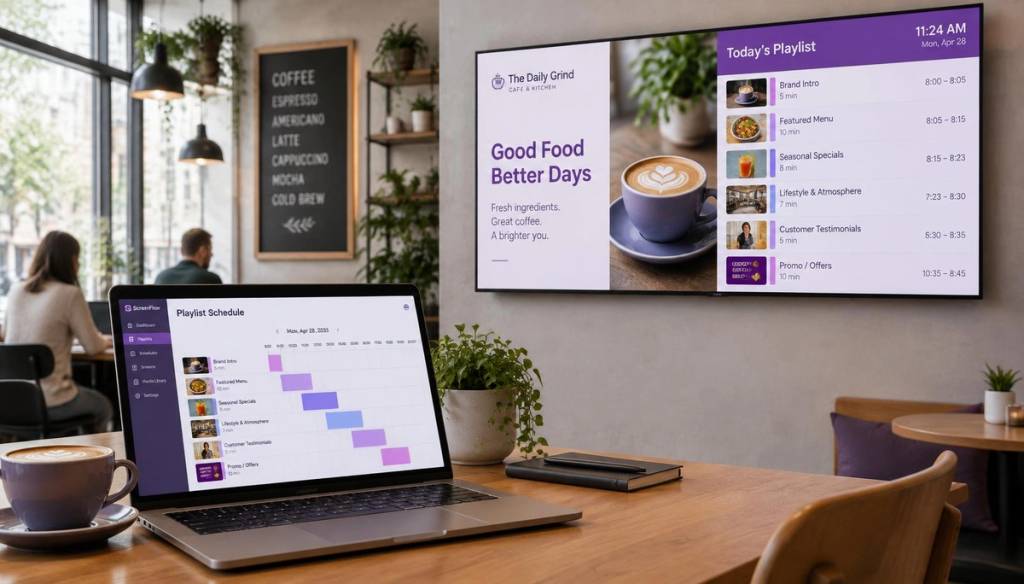
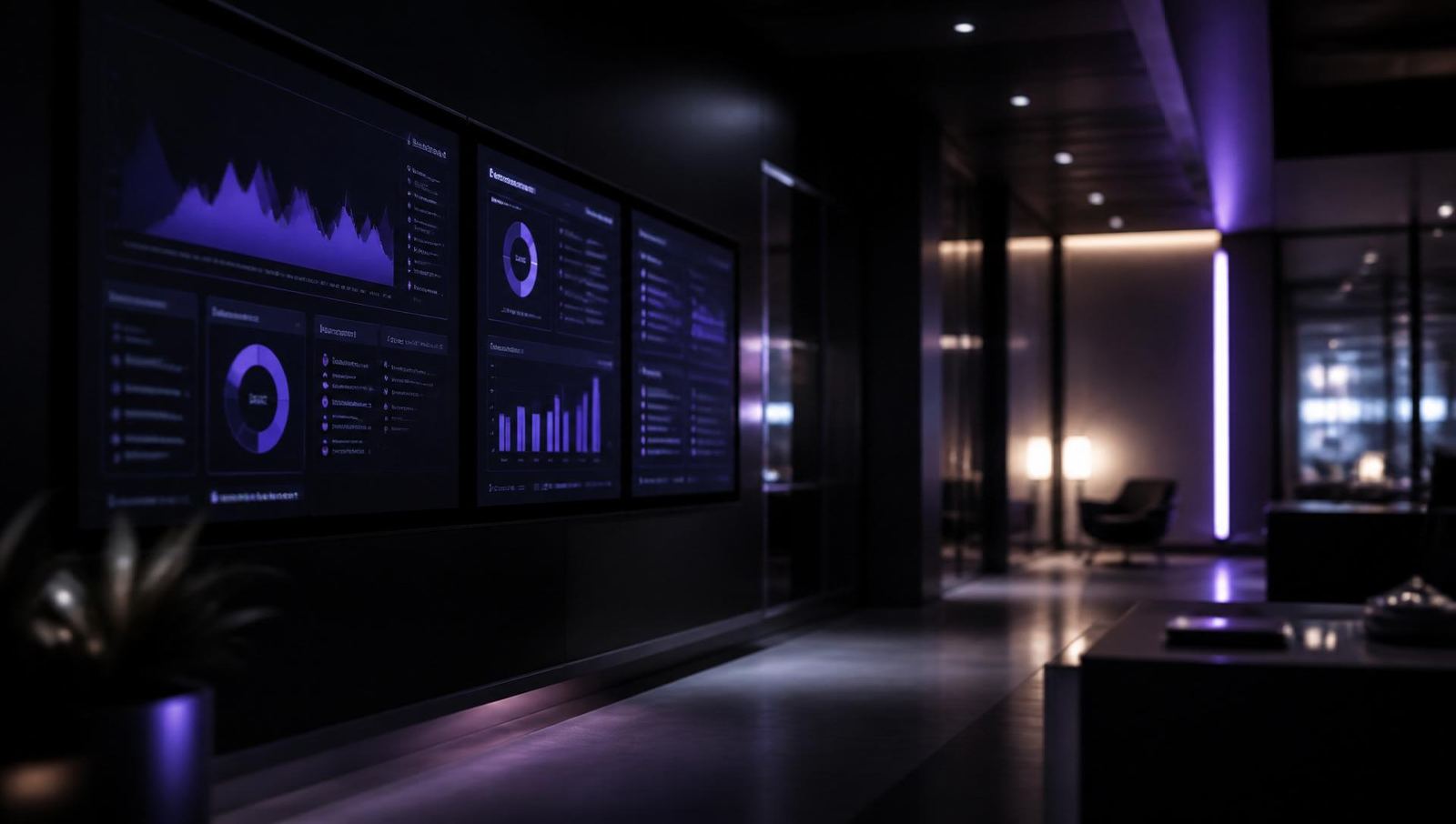
Drag items into a playlist, set how long each one displays, and preview the rotation before it goes live. Offices use this for internal comms and KPI dashboards, typically starting with a two-slide loop: company news and room booking info. Our corporate offices guide has more detail on workplace setups.
The playlist builder works the same way you'd build a music playlist. Add items, reorder them, set durations, and save. You can build as many playlists as you like and assign different ones to different screens.
5. Press play, then iterate
Assign the playlist to your screen and it starts immediately. Every change you make in the dashboard pushes in real time. Holiday hours, flash sales, today's specials, all updated from your laptop or phone without touching the TV.
Schedule content in advance so a Monday morning playlist switches itself on while you're still on the weekend. Set up dayparting so your breakfast menu automatically gives way to lunch offers at 11:30. The scheduling tools are built into every plan, including the Starter tier.
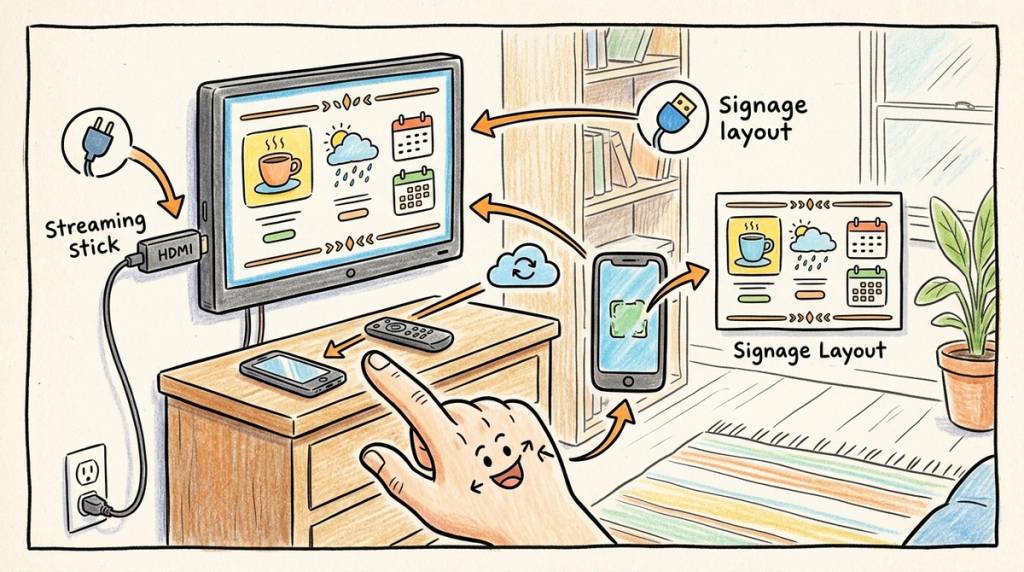
What this costs vs. the traditional route
Traditional digital signage installs commonly run £1,500 to £3,000 or more per screen before monthly fees even enter the conversation. That buys you commercial screens, proprietary players, and an integrator's day rate. It works, but it's a heavy lift for a café that just wants to display its menu.
The BryteCast route is different. There's no hardware to buy because BryteCast is cloud SaaS and your existing TV's browser does the work. The Starter plan is $29/month and includes 3 screens, remote screen casting, image and video uploads, and content scheduling. You can see full plan details on our pricing page.
For multi-location businesses that need user roles and multi-location management, the Business plan at $79/month covers 5 screens. Growth plan at $139/month includes 10 screens plus API access and white-label branding options. See all three plans at brytecast.com/pricing.
Common questions
Will it survive the TV being switched off?
Yes. When the TV powers back on and the browser reconnects, the player picks up the current playlist automatically. BryteCast keeps an offline fallback cached on the device, so a brief Wi-Fi blip never means a blank screen staring at your customers.
Can my team update it without breaking things?
Workspaces include roles and permissions. Give the morning shift editor access to the menu playlist without handing over billing or screen management. You control who sees what, and every change is logged in your dashboard.
Do I need to buy a Fire Stick or media player?
No. BryteCast is a cloud-based platform that runs through your display's built-in browser. You open the player URL, enter the pairing code, and content plays. There is no hardware connector to purchase. The only exception is if your display has no browser at all, in which case a basic streaming device with a browser would get you online. But BryteCast itself never requires extra hardware.
Get started with the TV you already own
If you can build a playlist, you can run digital signage. BryteCast takes the complexity out of the equation: no installers, no proprietary hardware, no agency on retainer. Just a cloud dashboard, a browser on your TV, and a six-character code.
Plans start at $29/month for 3 screens, and every plan comes with a 7-day free trial. No credit card required to start.
Start your 7-day free trial now
Next reads: 6 ways to cut signage costs in 2026 or 7 menu board ideas that boost sales.
Get started
Ready to upgrade your screens?
Start your 7-day free trial. No credit card required — pair your first screen in minutes.