
Christmas Digital Signage Ideas for Shops, Cafés and Salons (and How to Schedule Them)
Guides 5 min read
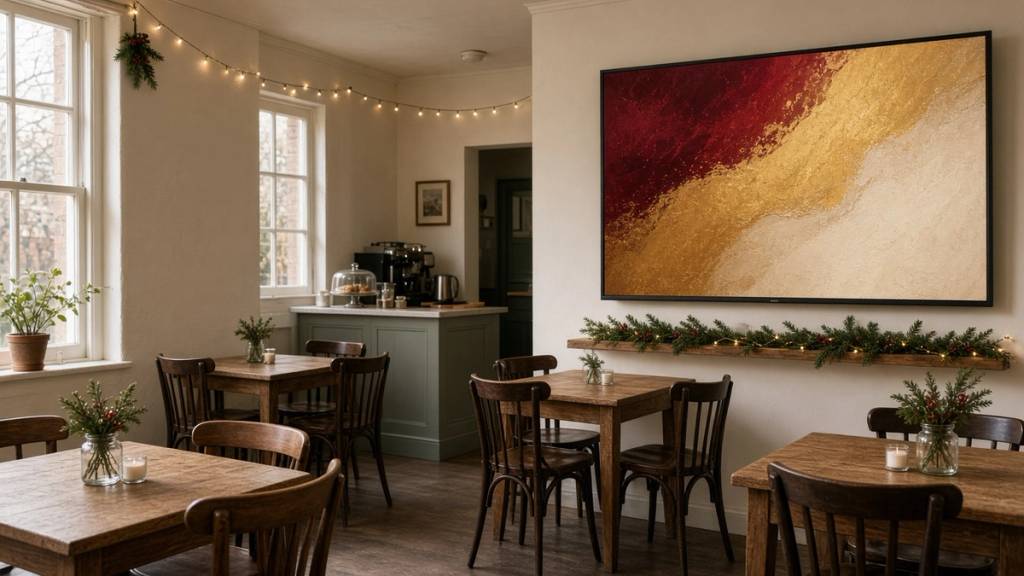
The best Christmas digital signage is simple: show your festive offers, your Christmas opening hours and how to book or order, then plan when each piece goes on and comes off. Plan three short playlists (run-up, Christmas week, and the gap between Christmas and New Year), and you will not be standing on a chair on Boxing Day changing a slide.
What to show on your screens at Christmas
Customers come in with questions at this time of year. Your screen can answer the common ones before anyone has to ask.
Christmas opening hours
This is the single most useful slide you can run in December. List every day that changes, including Christmas Eve, Christmas Day, Boxing Day, the days in between and New Year's Day. Put it on its own slide with large text, not squeezed in at the bottom of an offer.
Gift ideas and gift cards
If you sell gift cards or vouchers, give them a slide of their own with the price range and where to buy (at the till, online or both). Shops can rotate a few "gifts under £20" style slides. Salons can show treatment vouchers and gift sets.
Festive menus and specials
Cafés and restaurants can show the festive menu, seasonal drinks and the dates they are available. Keep one dish per slide or a short, readable list. If you take Christmas party bookings, add a slide with how to book and the last date you will take bookings.
Last order and last booking dates
People forget. A clear "Last day for Christmas orders" or "Last appointments before Christmas" slide saves a lot of disappointed phone calls. Add a QR code that goes to your booking page if you have one. Our guide to QR codes on digital signage covers sizing and placement.
Your Google reviews
A busy December brings in people who have never visited before. Showing what other customers say about you is a gentle way to build trust while they wait. BryteCast lists Google Reviews as a content type on every plan (see pricing).
Charity drives and community events
If you are collecting for a food bank, hosting a late-night shopping evening or running a festive class at the gym, give it a slide with the date, time and what people need to do.
Plan three playlists, not one
Trying to cram everything into one long loop is how screens end up cluttered. Split December into three stages:
- The run-up (late November to mid-December): gift ideas, gift cards, festive menu, party bookings, last booking dates.
- Christmas week: opening hours first, last-minute gifts, collection times, any closure notice.
- Between Christmas and New Year: reduced hours, sale or January offers, rebooking prompts for January.
Each playlist stays short and relevant. When one stage ends, the next one takes over.
Plan it once, then switch with a few clicks
With BryteCast you build a playlist in the dashboard and assign it to a screen or a group of screens. Content scheduling is included on every plan, with advanced scheduling on Business and Growth, so you can change what plays from the dashboard instead of standing at the TV.
A simple approach:
- Build your three Christmas playlists in November while it is quiet.
- Put the switch-over date for each one in the diary, or set it up in your schedule.
- Keep your normal playlist ready for January so the screens go back to everyday content.
- Check the weekly schedule view before you close for Christmas so nothing overlaps.
If you have more than one location, group the screens so one change reaches every site at once. For more on this, read our playlist scheduling guide.
Design tips for festive slides
- Keep it readable. Big text, strong contrast and no more than one main message per slide. Snow-covered backgrounds behind white text are hard to read.
- Use your brand colours. A little red and gold goes a long way. Your logo and usual fonts keep it looking like you.
- Canva works well. Many owners design their Christmas slides in Canva. BryteCast lists Canva embed on every plan, so you can show those designs on the screen.
- Give each slide time. Opening hours and dates need longer on screen than a single "Merry Christmas" image.
- Mind the orientation. Design for the way the TV is mounted. Our post on portrait vs landscape signage explains the sizes.
Ideas by business type
Shops
Gift guides by price, gift cards, extended late-night hours, click and collect cut-off dates, returns policy over Christmas.
Cafés and restaurants
Festive menu, seasonal drinks, party booking dates, Christmas Eve closing time, January opening date.
Salons and barbers
Last appointments before Christmas, New Year's Eve slots, gift vouchers, retail gift sets, January rebooking.
Gyms and studios
Festive class timetable, closure days, January membership offers, any charity class or challenge.
FAQs
When should I start showing Christmas content?
Most businesses start with gift ideas and booking dates in late November and move to opening hours and last-minute messages in mid-December. Start when your customers start asking.
Do I need new screens for Christmas?
No. BryteCast runs in a web browser, so the TV you already have will do. To pair it, open brytecast.com/player on the TV and type in the code from your BryteCast dashboard.
What happens to the Christmas slides in January?
Switch your normal playlist back on from the dashboard, or plan it into your schedule, and the screen goes back to everyday content. Check your plan once before you close.
Can I change the opening hours slide at the last minute?
Yes. Edit the slide or playlist in your BryteCast dashboard rather than at the TV. Then glance at the screen to make sure the new hours are showing.
Get your Christmas screens ready this week
Build your festive playlists now and keep December simple. BryteCast Starter costs £25 a month (or $29), with 10% off if you pay annually, and comes with a 7-day free trial. See plans and start your trial.

Get started
Ready to upgrade your screens?
Start your 7-day free trial. No credit card required — pair your first screen in minutes.