
Digital Signage for Schools and Colleges: What to Show and Who Can Edit It
Use cases 4 min read
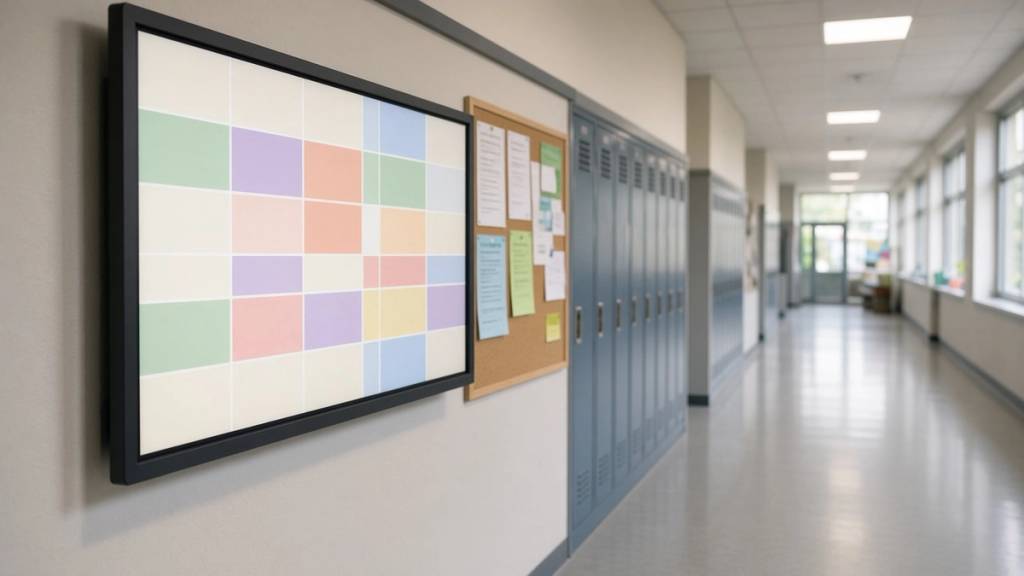
Digital signage in a school or college works when the screens show what students, staff and visitors need right now: today's notices, room changes, events and directions. Keep the content short, plan it by week and by term, and give each department editing access to its own screens rather than one shared login. With BryteCast you can use the TVs you already have, because the player runs in a web browser.
What should a school put on its screens?
Start with what people actually look for as they walk past.
Daily notices and events
Clubs, fixtures, trips, deadlines and assemblies. One message per slide, large type, and a clear date so nobody turns up a week late.
Timetable and room changes
A changed room on a printed sheet is easy to miss. A slide outside the relevant corridor or in reception is harder to ignore. Remove it the moment it no longer applies.
Wayfinding for visitors and open days
Arrows and plain directions to reception, the hall, departments and parking. On open days, a dedicated playlist near the entrance saves staff answering the same question all morning.
Celebrating students
Results days, sports wins, artwork and performances. Check your school's consent and safeguarding policy before showing any student's name or photo.
Safety and wellbeing
Who to talk to, where to find support, fire assembly points. Keep these in the rotation all year so they are familiar.
Where screens work best
- Reception: visitor information, sign-in reminders, today's events.
- Main corridors: notices and room changes, where students pass between lessons.
- Canteen: menus, queues and clubs, where people stand still for a minute.
- Staff room: internal updates, cover notices, training reminders.
- Sports hall or theatre foyer: fixtures, performances and ticket information.
For choosing between upright and wide screens in narrow corridors, see Portrait vs landscape digital signage.
Plan it by term, not on the day
Most school content follows the calendar. Build playlists for welcome week, exam season, open days and holidays, and have them ready in advance. BryteCast shows your schedules on a weekly overview and warns you when two schedules overlap on the same screen, which helps when several people plan content.
A simple rhythm that works:
- A standing playlist for each screen with safety, wayfinding and general information.
- A weekly playlist for events and notices, reviewed every Friday.
- Seasonal playlists prepared ahead for exams, open days and the end of term.
Our playlist scheduling guide goes into more detail.
Who should be able to edit the screens?
Not everyone needs full control. BryteCast has four roles: owner, admin, editor and viewer. A sensible split for a school:
- Owner or admin: the comms lead or business manager, who manages screens, users and billing.
- Editor: office staff, heads of department or a sixth form team who update content.
- Viewer: senior leaders who want to see what is scheduled without changing it.
User roles and permissions come with the Business and Growth plans. Read Digital signage user permissions for how to decide who needs what.
Several buildings or sites?
Group screens by building or site so each one gets the right playlists. Screen grouping is on every plan; multi-location management is on Business and Growth. Updates go out from the dashboard, so nobody has to walk round the campus with a USB stick. See Remote screen management for multi-location signage.
Urgent notices
If something changes during the day, such as a closure, a weather warning or a cancelled event, assign a short urgent playlist to the affected screens from the dashboard and remove it when the situation is over. Screens are not a replacement for your school's emergency procedures, alarms or official parent communications.
Do we need special hardware?
Usually not. Open brytecast.com/player in the browser on a smart TV or commercial display, then type in the pairing code from your dashboard. If a screen has no browser, a streaming stick or small computer will run the player. See How to turn any TV into digital signage.
FAQs
Can different departments run their own content?
Yes. Group screens by department or building and give staff editor access on Business or Growth plans, so each team manages its own playlists.
Can we show YouTube videos or Canva designs?
Yes. BryteCast playlists can include images, videos, YouTube embeds, Canva designs and text announcements.
How much does it cost?
Starter is £25 a month or $29 a month and includes three screens. Business and Growth add more screens, user roles and multi-location management. Annual plans save 10%. See BryteCast pricing.
Replace the noticeboard, keep the message
Start with one screen in reception and one in a busy corridor, then grow from there. Start your 7-day free trial or talk to the BryteCast team about how it would fit your school.

Get started
Ready to upgrade your screens?
Start your 7-day free trial. No credit card required — pair your first screen in minutes.