
How to Show Google Reviews on a TV in Your Shop
Guides 5 min read
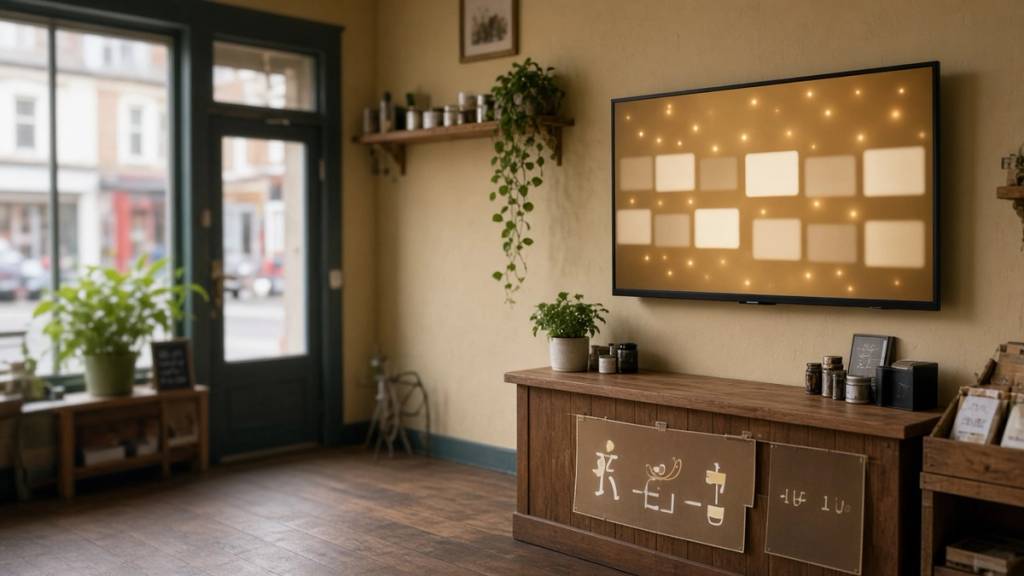
You can show your Google reviews on a shop TV with BryteCast by adding Google Reviews as a content item in your dashboard and dropping it into a playlist alongside your menu or offers. Google Reviews is included on every BryteCast plan. In the UK, show your overall rating with any reviews you pick out, so the screen stays fair to customers.
Why put Google reviews on a screen?
People read reviews before they visit. A screen in your shop repeats that proof at the moment someone is waiting, browsing or deciding whether to add a treatment or a dessert. It also tells new customers that you are confident in what other people say about you.
Reviews work best as one slide in a mixed loop, not a screen of their own. A short rotation of offer, menu, review, offer keeps the screen useful and gives the review a moment to be read.
How to show Google reviews with BryteCast
Step 1: Pair your TV
On the TV, open the web browser and go to brytecast.com/player. In your BryteCast dashboard, create the screen and type the pairing code it gives you into the TV. If you are not sure your TV will work, see How to turn any TV into digital signage.
Step 2: Add your Google reviews
In your BryteCast dashboard, add a new content item and choose Google Reviews, one of the content types included on every plan. Follow the on-screen steps to point it at your business's reviews, and give it a name you will recognise.
Step 3: Set how long it shows
Decide how long the slide stays on screen. As a rule of thumb, give a reviews slide long enough for someone to read two or three short reviews at a comfortable pace. Ten to fifteen seconds is a sensible starting point for a counter or waiting area; test it on the real screen and adjust.
Step 4: Add it to a playlist
Add the reviews item to the playlist that runs on that screen, between your other slides. A café could run reviews between menu slides, so the menu is never off screen for long. See the playlist scheduling guide for more on planning your loop.
Keep it honest: UK rules on showing reviews
The Competition and Markets Authority (CMA) has published guidance on fake and misleading reviews under the Digital Markets, Competition and Consumers Act 2024. It says a business may break the law if it selectively promotes positive reviews, or highlights reviews that do not reflect customers' overall experience. The guidance covers reviews shown offline as well as online, so a TV in your shop counts.
In practice:
- Show your overall star rating and the number of reviews alongside any reviews you feature.
- Do not pick only five-star reviews in a way that gives a misleading picture.
- Never show fake reviews, or reviews written by staff, friends or family, as if they were genuine customers.
- If a review was incentivised, for example with a discount, say so.
You can read the guidance yourself on GOV.UK (CMA208, fake reviews guidance). This is a plain-English summary, not legal advice.
Where to put a review screen
- Reception or waiting area. People have time to read. Good for salons and spas and dental and medical clinics.
- By the till. A quiet nudge while people pay. Works well in cafés and restaurants.
- In the window. Passers-by see what customers think before they step in. Useful for independent shops.
- In a showroom or service lounge. Reassurance while people wait or weigh up a big purchase, as in car dealerships.
Make it easy to leave a review
Happy customers are more likely to leave a review if it takes seconds. Add a slide with a QR code that opens your Google review link, right after the reviews slide. You can create the QR code with a free generator, save it as an image and upload it like any other image. Our guide to QR codes on digital signage covers size and placement.
Ideas by business type
- Salon: reviews between treatment menu slides, so clients see what others thought of a service while they wait.
- Café: reviews between menu boards, timed so the menu is never off screen for long.
- Dealership: reviews in the service lounge and near the sales desk.
- Clinic: a calm, slower rotation in the waiting room, mixed with practical notices.
FAQs
How do I show Google reviews on a TV in my shop?
Pair the TV by opening brytecast.com/player and entering the code from your dashboard. Add Google Reviews as a content item in your dashboard and put it in a playlist with your offers or menu.
Is it legal in the UK to show only my best reviews?
Be careful. CMA guidance says selectively promoting positive reviews, or highlighting ones that do not reflect customers' overall experience, may break the law, and that applies offline too. Show your overall rating and number of reviews alongside any you feature.
Can I show reviews alongside my menu or offers?
Yes. A Google Reviews item sits in a playlist with images, videos, YouTube, Canva designs and text announcements, and playlists can be scheduled.
Which BryteCast plans include Google Reviews?
All three: Starter, Business and Growth. Starter is £25 a month or $29 a month, with 10% off if you pay annually. See pricing.
Put your reviews where customers can see them
If your customers already say good things about you on Google, let the people in your shop see it too. Start your 7-day free trial and add a reviews slide to your first playlist.
Get started
Ready to upgrade your screens?
Start your 7-day free trial. No credit card required — pair your first screen in minutes.